AI command bar template for SaaS apps
Interactive AI command bar template for SaaS apps. Minimal design with parallax scroll and glassmorphism. Use this AI template with Claude Code, Replit, Lovable, ChatGPT Codex, Bolt, Cursor, or another coding tool.
About this vibe coding template
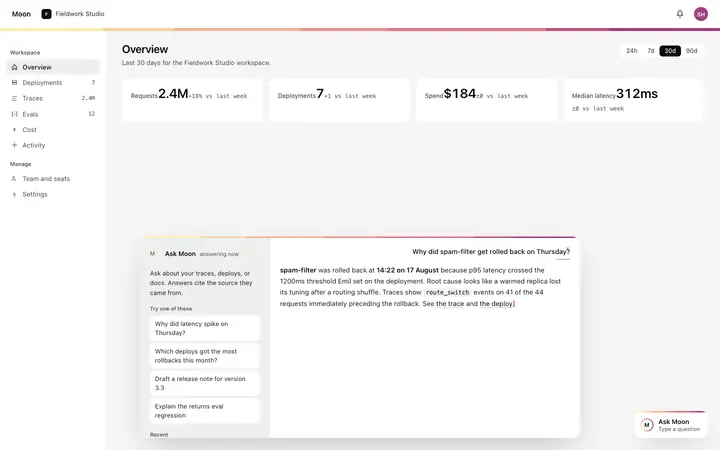
Interactive AI command bar template for SaaS apps and developer tools. A keyboard triggered overlay that merges product navigation with AI answers in a single surface. The command bar opens as a centered modal over the existing product when the user presses the keyboard shortcut shown in the footer. A search input at the top of the bar accepts both navigation queries and natural language AI questions. A mode toggle pill in the input row switches the bar between Navigate mode and Ask AI mode. Minimal design with parallax scroll and glassmorphism. Describe your product, your audience, and your offer, and your coding tool fills in the copy and the images.
Build a full AI chat product or AI SaaS app with this template design
An AI chat product repeats one surface at different sizes, from a full chat interface to a chat widget and a copilot panel, so one AI chat template can set the standard for every screen after it. Copy the template, paste it into Claude Code, Replit, Lovable, ChatGPT Codex, Bolt, or Cursor, and send this alongside it.
Paste into Claude Code, Replit, Lovable, Bolt, or Cursor
Common questions about this template
What does this AI command bar template include?
A centered modal with a search input, a mode toggle between Navigate and Ask AI, a navigation section with destinations and keyboard shortcut labels, an actions section with product commands, an AI answer section with a formatted response body and blinking cursor, and a footer with keyboard navigation hints.
Does this AI command bar template answer questions automatically?
No. The command bar is the search, navigation, and answer surface. Connect your own model to the Ask AI mode, pass the user's typed question to your API, and write the response back into the answer section to make the answers live.
How does the mode toggle work in this template?
A pill toggle in the search row switches between Navigate mode and Ask AI mode. In Navigate mode the bar shows grouped navigation results and product actions. In Ask AI mode the bar shows the AI answer section below the input. Replace the mode labels with the terminology your product uses.
How do keyboard shortcuts work in this AI command bar template?
Navigation items and action items each have a keyboard shortcut key shown on the right side of the row. The shortcut label becomes visible when the item is highlighted by keyboard navigation. The footer shows the global shortcuts: arrow keys to navigate, Enter to trigger, the keyboard shortcut to open and close the bar, and Esc to dismiss.
How does this form factor compare to the other chat widget templates?
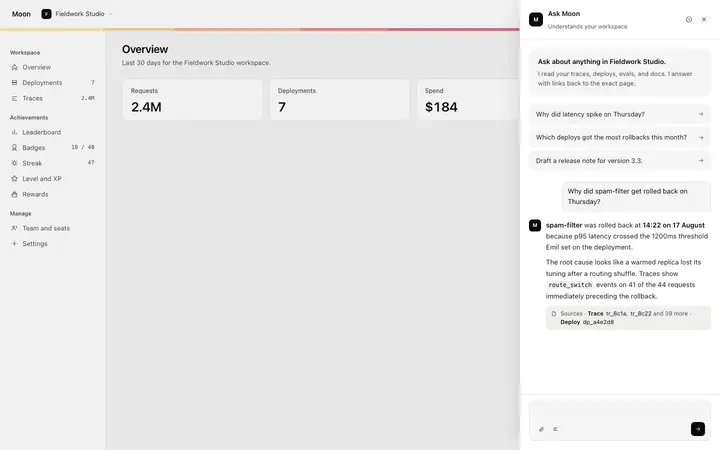
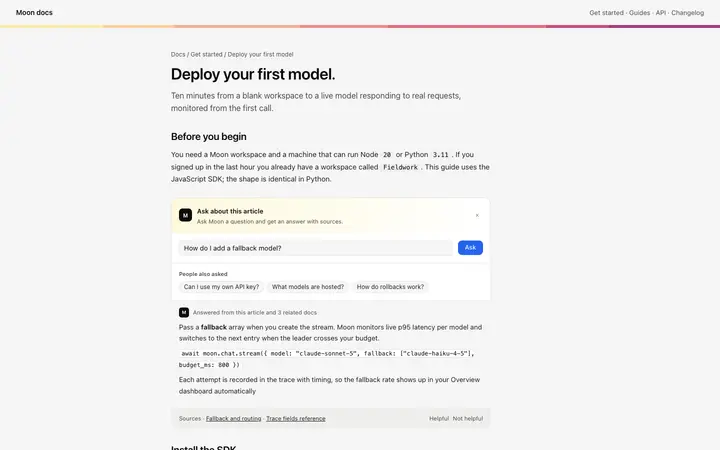
The command bar is keyboard triggered, best for power users who prefer not to use the mouse. The chat widget opens from a floating bubble, best for deliberate chat sessions. The copilot panel is a persistent full height rail, best for always visible AI. The inline help widget embeds in documentation, best for contextual page help. The support sidebar is a collapsible edge tray, best for support conversations.
How do I build a full AI chat product or AI SaaS app with this template?
Use this template as the first page of the AI chat product or AI SaaS app, then ask your AI coding tool for the rest. Claude Code, Replit, Lovable, Bolt, and Cursor can all read the design and repeat it across the rest of your pages.
Use this AI coding template for
- ·AI command bar template for a SaaS app or developer tool
- ·Command palette template with keyboard navigation and AI answer mode for SaaS products
- ·Keyboard triggered command bar with navigate and ask AI modes for a SaaS platform
- ·Vibe coding AI command bar template
Works with every vibe coding tool
More from the AI assistant widget set
All 5 templates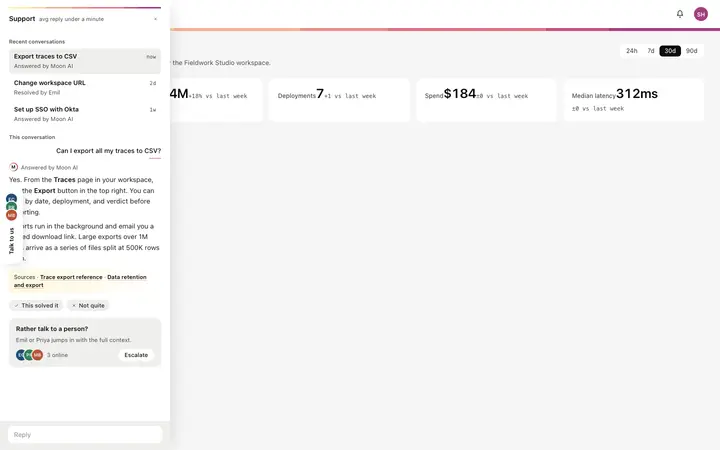
More chat templates
View all
More vibe coding SaaS templates
View all

Other templates you might like