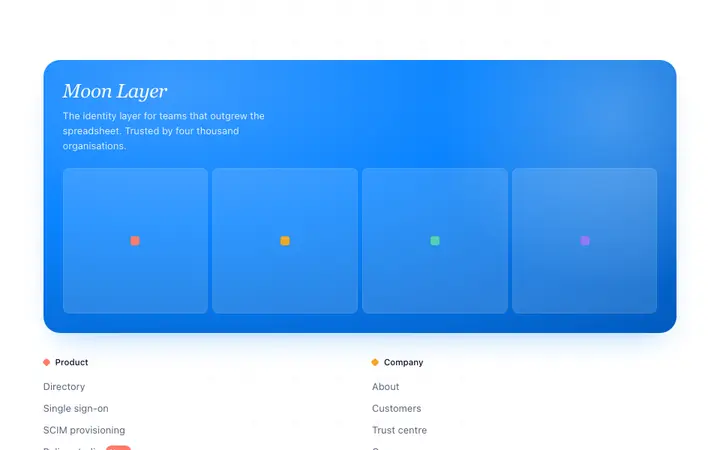
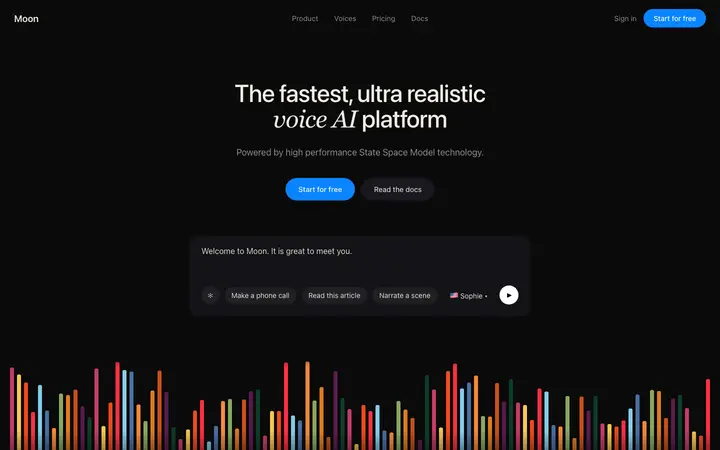
Bolt is one of the fastest vibe coding tools for building an app or website from a single prompt. The problem is that every Bolt project that starts from a blank prompt ends up with the same default look: small fonts, tightly packed elements, basic blue links, and system UI buttons. That is not a Bolt limitation. It is a prompt limitation. Bolt builds what you describe, and "build me a landing page" describes almost nothing about design.
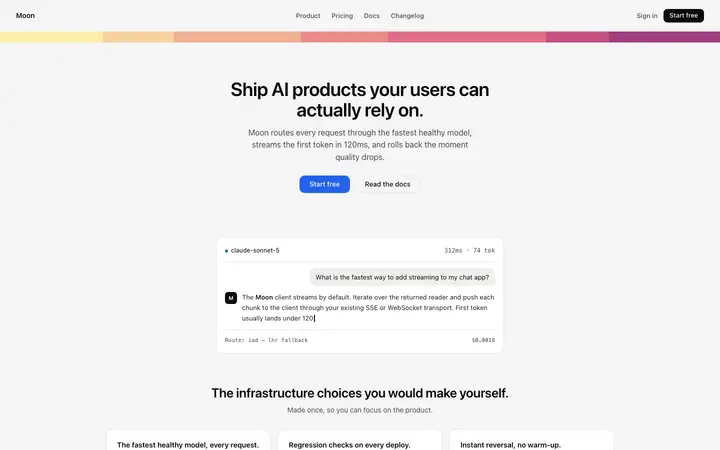
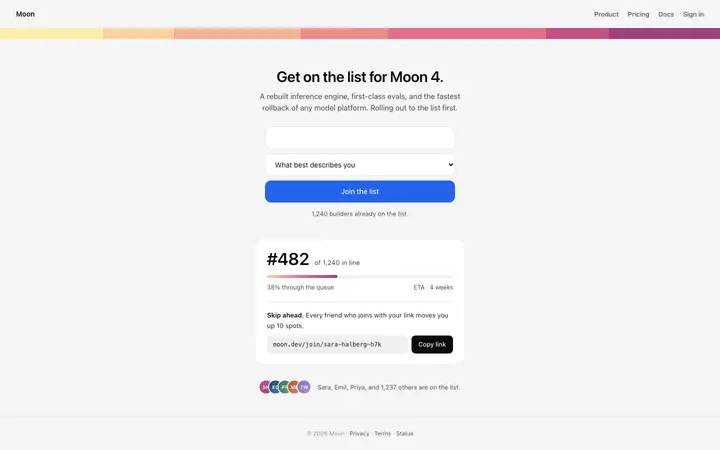
A BrowserMoon vibe coding template fixes this in one step. Copy a template, paste it into your Bolt prompt, and the design decisions are already made before Bolt writes a line of code. The fonts, the spacing, the colours, the layout, and the responsive breakpoints are all in the template. Bolt treats it as a fixed reference and generates your app or website around it.
What a Bolt prompt looks like with a Moon vibe coding template
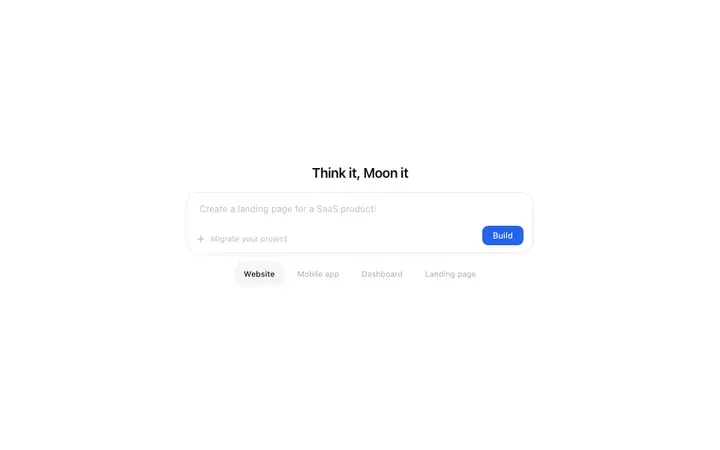
A strong Bolt prompt separates the design from the function. Describe what your app or website does in the first line, then paste the BrowserMoon template below with one instruction: keep the design unchanged. Here is an example using the Dark gradient hero template for AI SaaS:
Build a landing page for an AI note-taking app for remote teams. Use the hero template below as the top of the page. Replace the headline with "Never lose a meeting note again" and the subheading with "Record, transcribe, and summarise every call. Free for teams under ten." Keep all the design from the template unchanged: the gradient, the fonts, the spacing, the button style.
[paste Moon template here]
Bolt generates the hero with the exact design values from the template and generates the rest of the page in the same visual style. The result looks like a designed app or website, not a default Bolt scaffold.
How to iterate on Bolt output without losing the Moon template design
Bolt responds well to targeted follow-up prompts. The mistake most builders make is sending a vague correction like "make it look more professional." That tells Bolt to rewrite the styles from scratch, which overwrites the template design you already have.
Instead, name the specific element and the specific change:
- "Add a features grid below the hero with three columns. Match the font sizes and spacing from the hero."
- "Change the CTA button text to 'Start free trial' and the button colour to #2D5BE3."
- "Add a pricing table below the features grid. Use a three-tier layout with the same card style as the rest of the page."
Each of these tells Bolt what to add and where, without touching the template design that is already working.
Which BrowserMoon templates to start with in Bolt
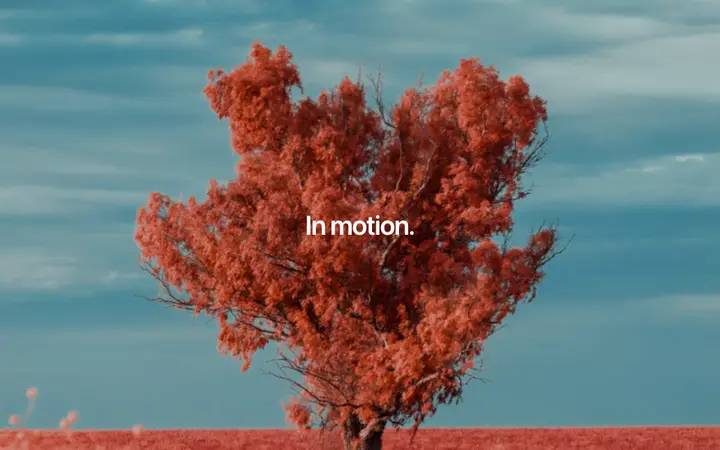
The highest-value BrowserMoon templates for a Bolt project are the ones that define the overall look of the page. A hero template like the Animated AI prompt hero template for SaaS or the Parallax scroll hero template for AI SaaS sets the typography, colour palette, and spacing for everything that follows.
For a complete landing page in Bolt, start with a hero, then generate the rest of the page by referencing "the same design language as the hero." If you need a navigation bar or a pricing table, copy those as separate BrowserMoon templates and paste them in follow-up prompts.
Why vibe coding templates produce better Bolt output
Bolt's AI generates better code when it has a design reference than when it generates design from scratch. Without a template, Bolt invents the typography, the spacing, and the colour palette based on the average of everything in its training data. With a BrowserMoon template, those decisions are defined. The AI focuses on the logic and the layout rather than the visual choices, and the result is an app or website that looks intentional rather than generated.
Every BrowserMoon template is free to copy and works with Bolt without any dependencies. Paste it, describe your app or website, and let Bolt handle the code. If you want to understand exactly why vibe coding tools produce generic output by default, and which six design patterns to avoid, this article explains the mechanism.