Feature grid template for the part of the page where a buyer decides whether the product does what they need. Aimed at SaaS landing pages, AI products, developer tools, B2B software, and…
Build this design with AI →Parallax scroll features template for products whose capabilities are the reason people buy. The parallax scroll holds the section in place and advances one capability at a time, so each…
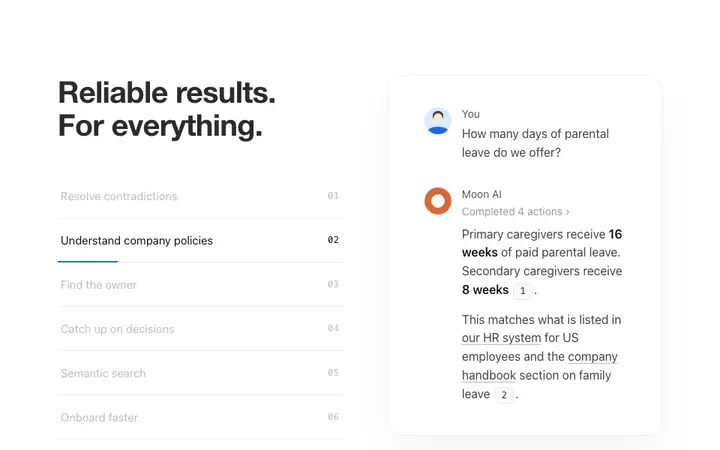
Build this design with AI →AI feature section template for products judged on whether their answers can be trusted. Built for AI research tools, company search tools, legal and medical AI, search products, and any…
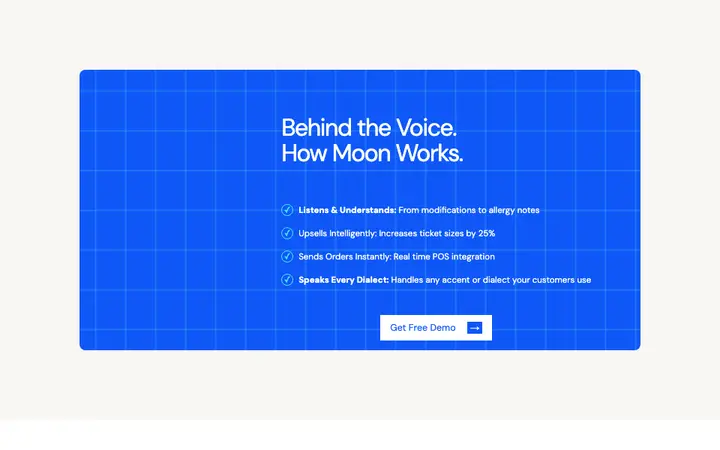
Build this design with AI →Features section template for the part of a SaaS page where buyers work out whether the product does what they need.
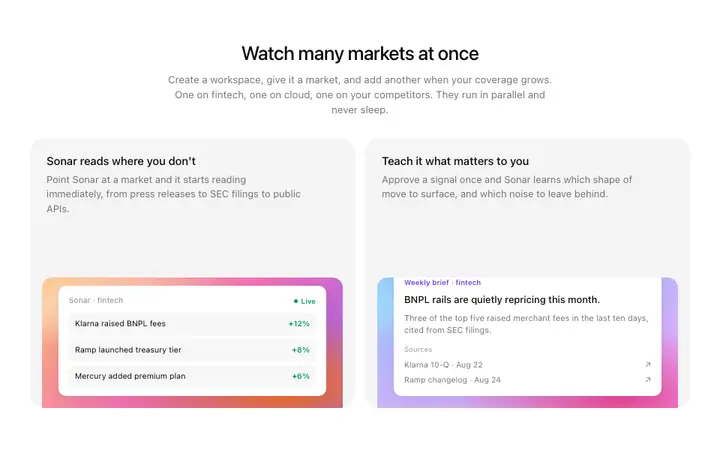
Build this design with AI →Gradient feature cards template for AI SaaS landing pages, developer platforms, and data products. Two cards sit side by side and each one ends in a colored panel with a small product…
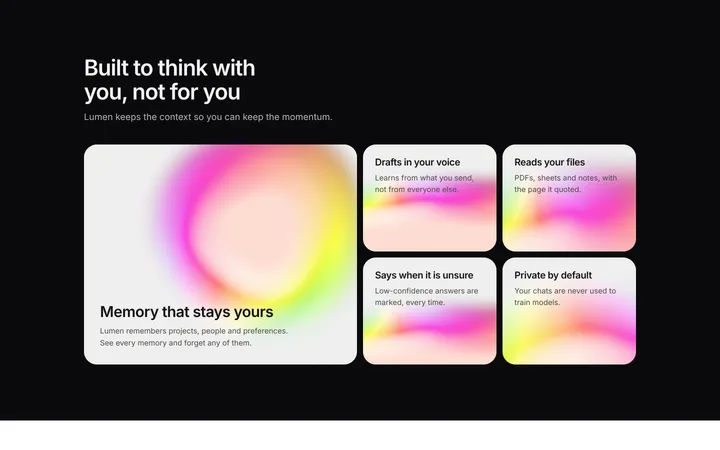
Build this design with AI →Show what your AI product does with this dark bento grid. A large card covers the main feature, like memory, and four smaller cards cover drafts, file reading, honest answers and privacy…
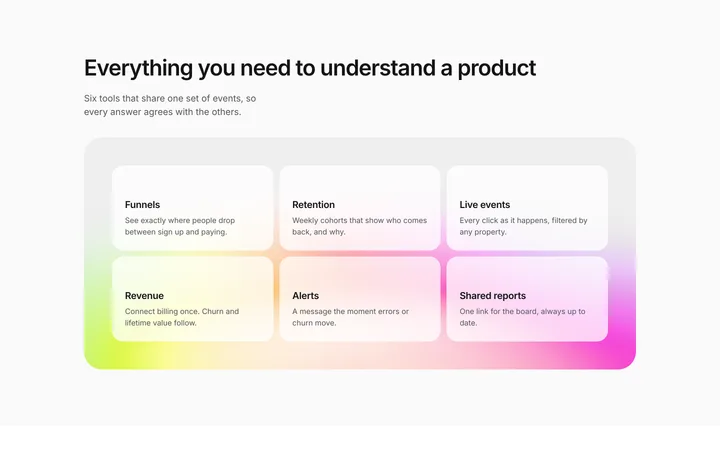
Build this design with AI →A six card feature grid for any SaaS website. The cards for funnels, retention, live events, revenue, alerts and shared reports sit on a soft moving gradient, so a plain features list…
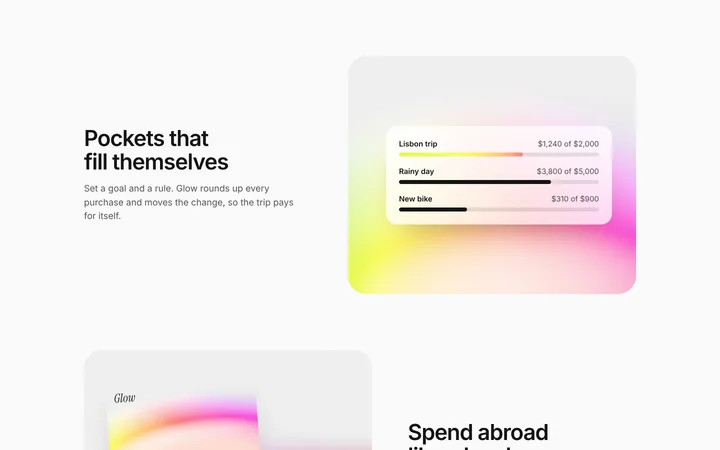
Build this design with AI →The classic zigzag features layout, made premium. Each row pairs a short headline and paragraph with a gradient card showing real UI, like savings goals with progress bars.
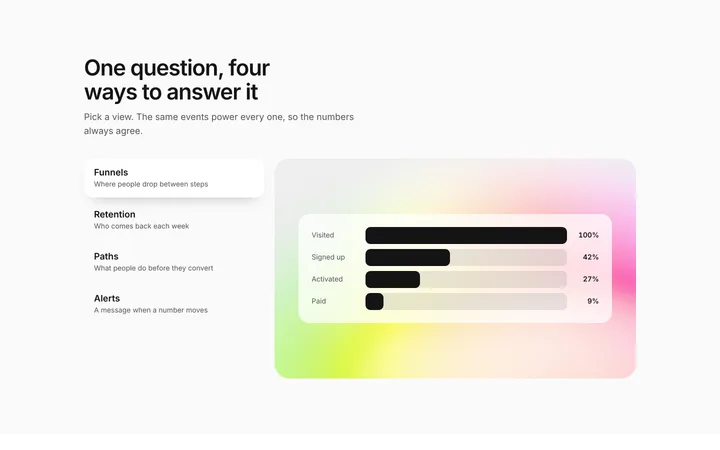
Build this design with AI →Show four product views in one section. Tabs for funnels, retention, paths and alerts sit on the left, and the right panel shows a funnel chart on a moving gradient.
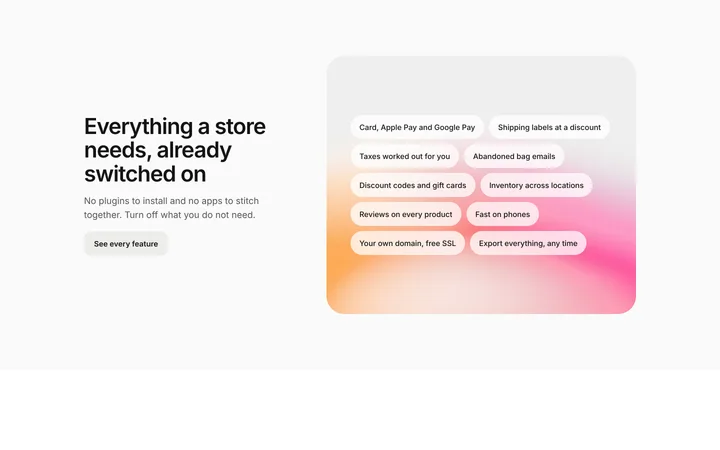
Build this design with AI →Show everything a store gets out of the box. A headline and short pitch sit on the left, and on the right a warm gradient panel holds chips for payments, shipping labels, taxes, discount…
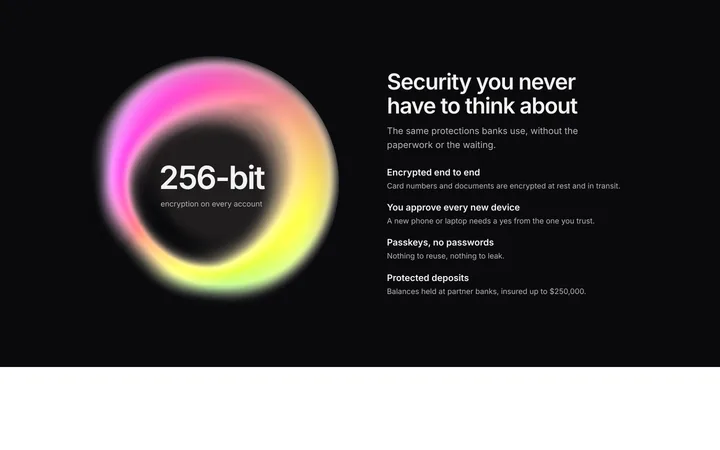
Build this design with AI →Build trust with a security section that looks serious. A glowing ring with 256-bit encryption sits on the left, and the right lists encryption, new device approval, passkeys and protected…
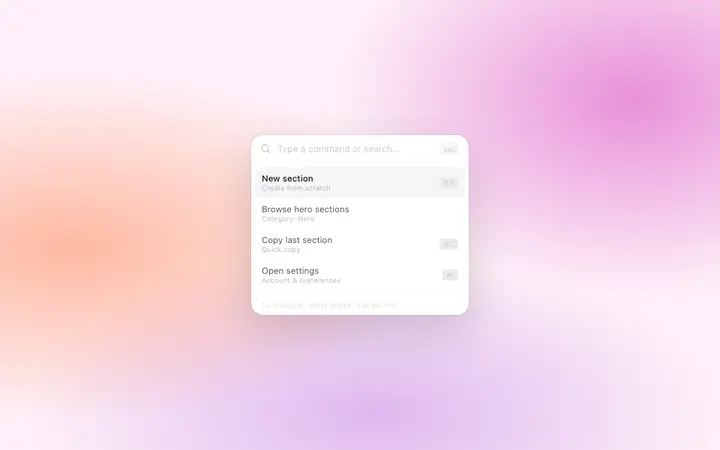
Build this design with AI →Command palette template for SaaS products where people work fast and reach for the keyboard first. Made for developer tools, dashboards, admin panels, project management apps, internal…
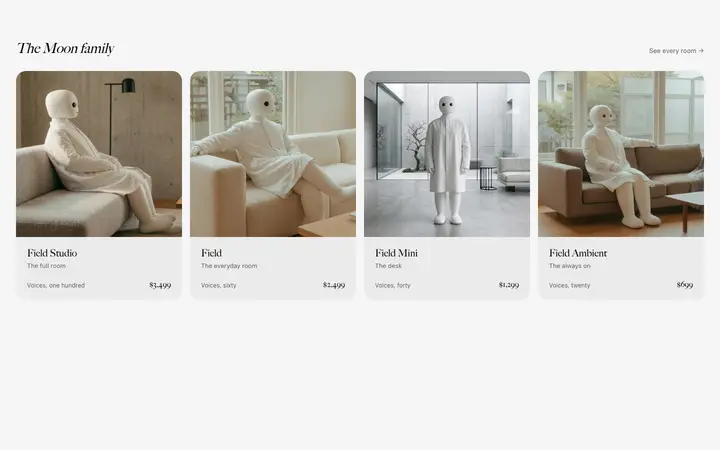
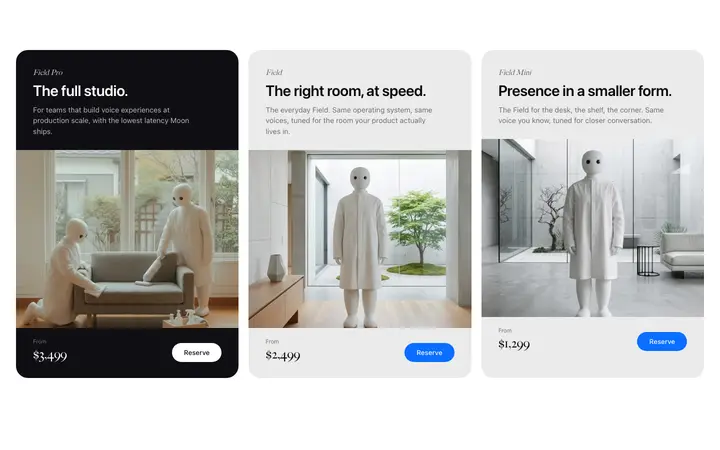
Build this design with AI →Product range template for brands whose lineup has grown past a single hero product. It works for consumer electronics companies, AI hardware brands, audio and wearable makers, home goods…
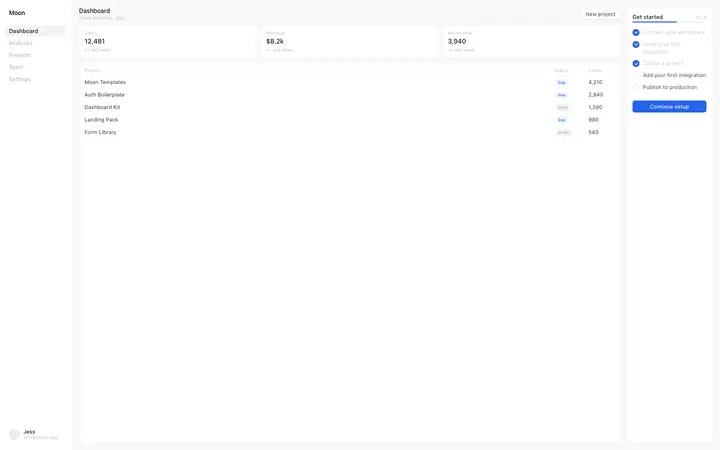
Build this design with AI →SaaS dashboard template for the screen new users land on and the setup they still have to finish. You will see it on analytics platforms, project management tools, AI products, and B2B…
Build this design with AI →Product comparison template for brands selling a range of models. Popular with AI hardware, consumer electronics, wearables, smart home devices, audio brands, and any direct to consumer…
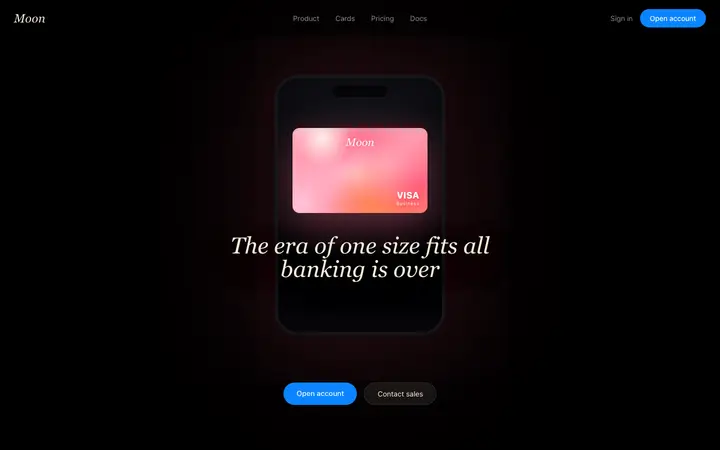
Build this design with AI →Banking landing page template for financial products aimed at businesses tired of traditional banks. Used by neobanks, business banking platforms, company card and spend tools, expense…
Build this design with AI →