News app onboarding screen
Onboarding · iOS and Android
Build this design with AI →Real mobile onboarding screens and flows, with what makes each one keep new users. Build any of them in Cursor, Claude Code or Lovable.
Onboarding · iOS and Android
Build this design with AI →Splash · iOS and Android
Build this design with AI →Onboarding · iOS and Android
Build this design with AI →Onboarding · iOS and Android
Build this design with AI →Onboarding · iOS and Android
Build this design with AI →Onboarding · iOS and Android
Build this design with AI →Onboarding · iOS and Android
Build this design with AI →Onboarding · iOS and Android
Build this design with AI →Onboarding · iOS and Android
Build this design with AI →Splash · iOS and Android
Build this design with AI →Onboarding · iOS and Android
Build this design with AI →Onboarding · iOS and Android
Build this design with AI →Onboarding · iOS and Android
Build this design with AI →Onboarding · iOS and Android
Build this design with AI →Onboarding · iOS and Android
Build this design with AI →Onboarding · iOS and Android
Build this design with AI →Every app onboarding design above is a ready template. Browse and preview for free; copy the code with a BrowserMoon licence.
Get a licenceGood app onboarding design gets new users to their first win as fast as possible. The best onboarding flows show the value in one or two screens, ask only the questions that personalise the app, explain permissions before asking for them, and let people skip ahead. These mobile onboarding examples include welcome screens, onboarding carousels, goal and preference screens, permission prompts and splash screens.
Show what the app does before asking for an account.
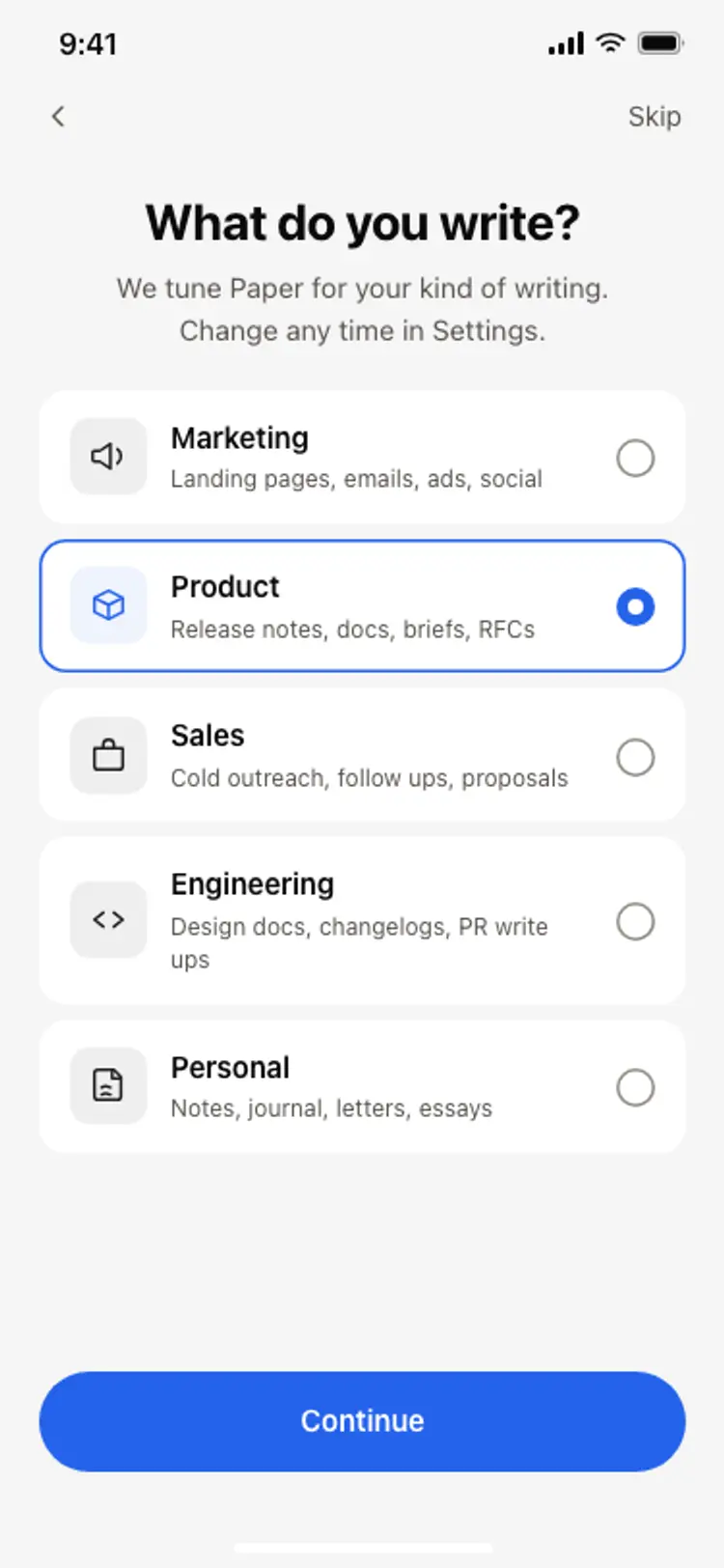
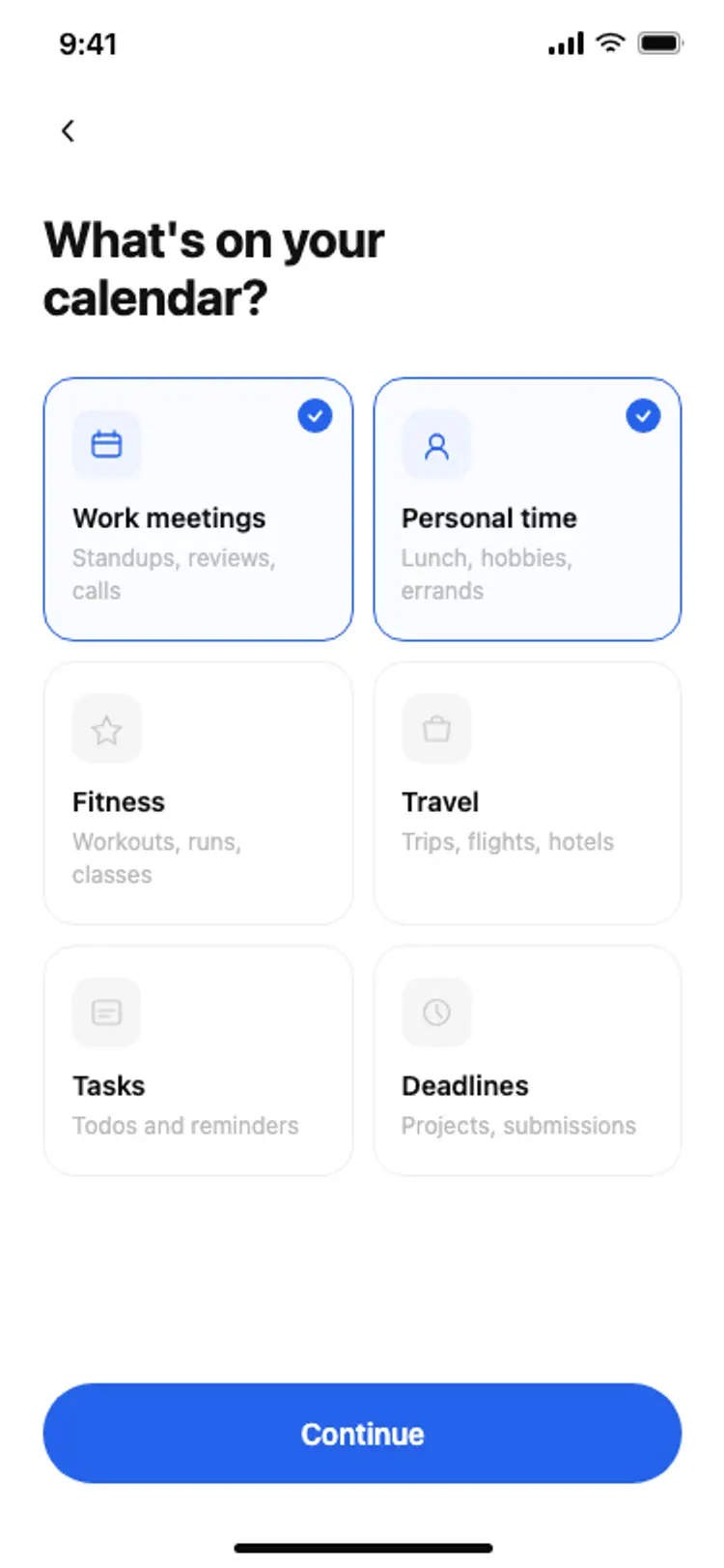
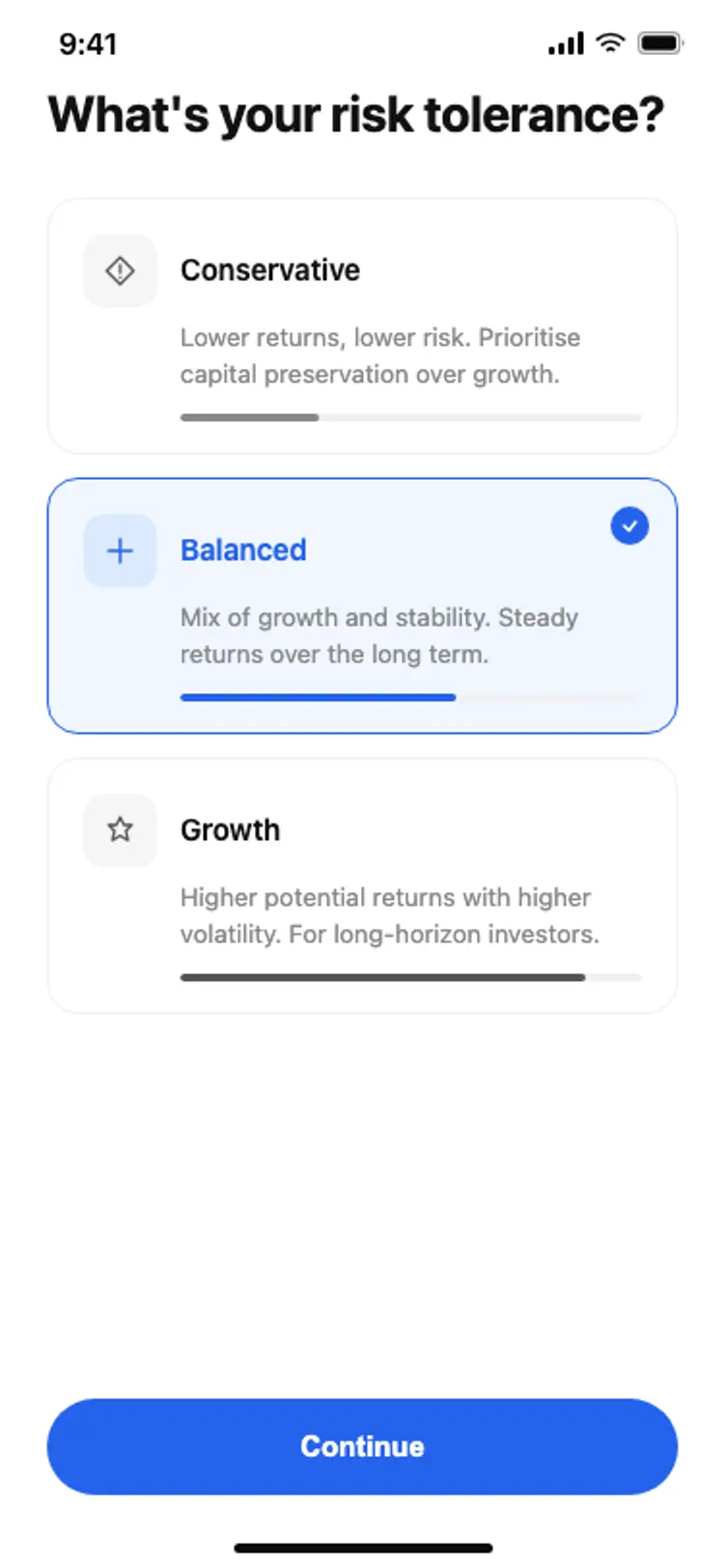
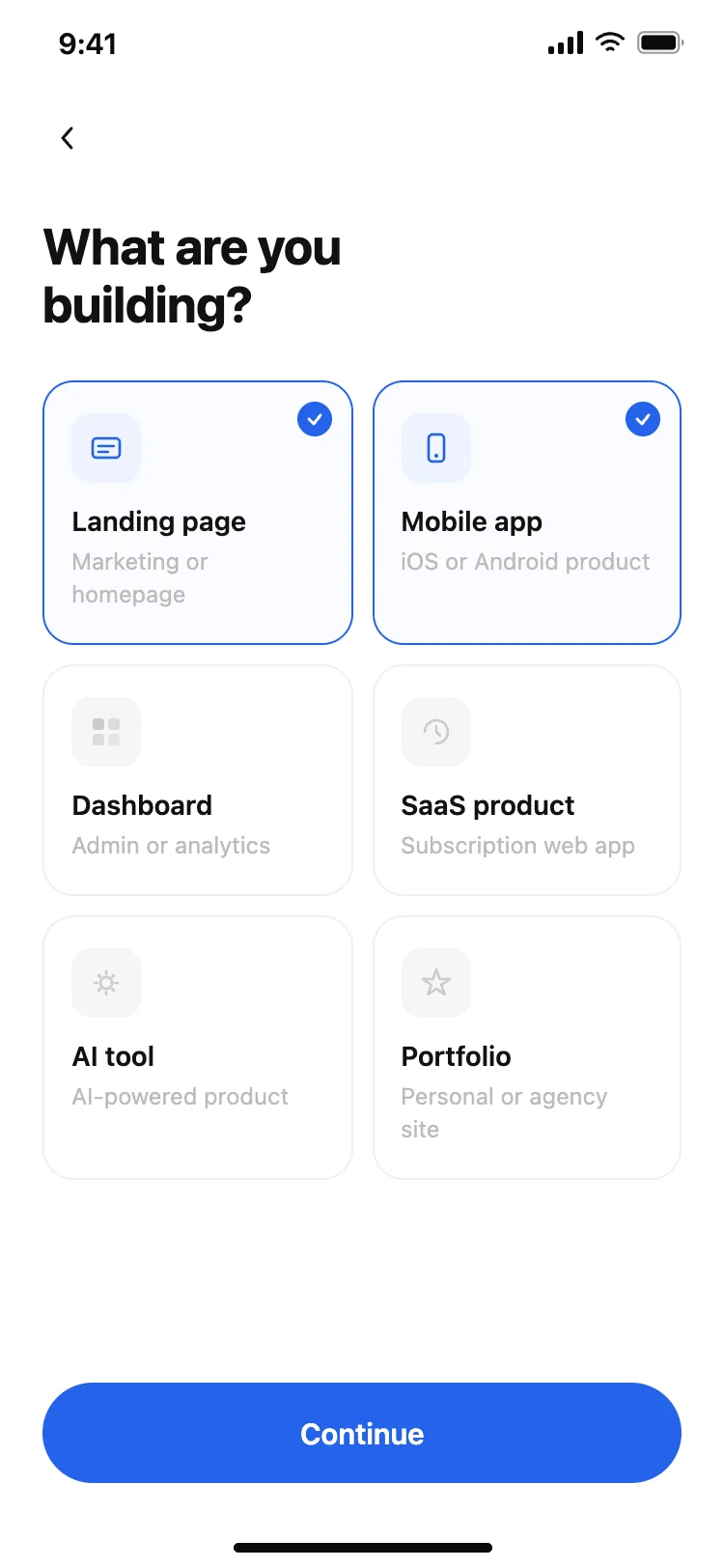
Ask only what changes the experience, like goals or interests.
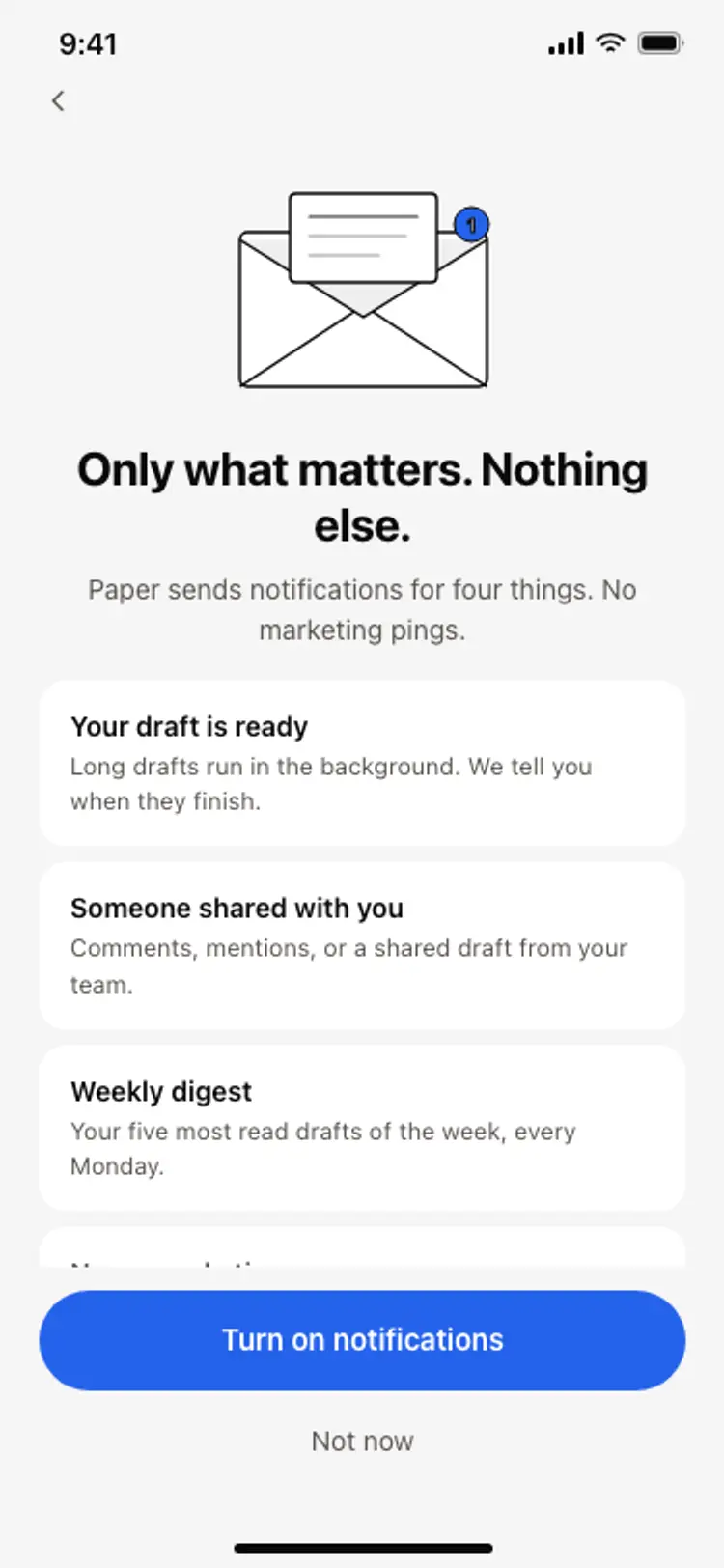
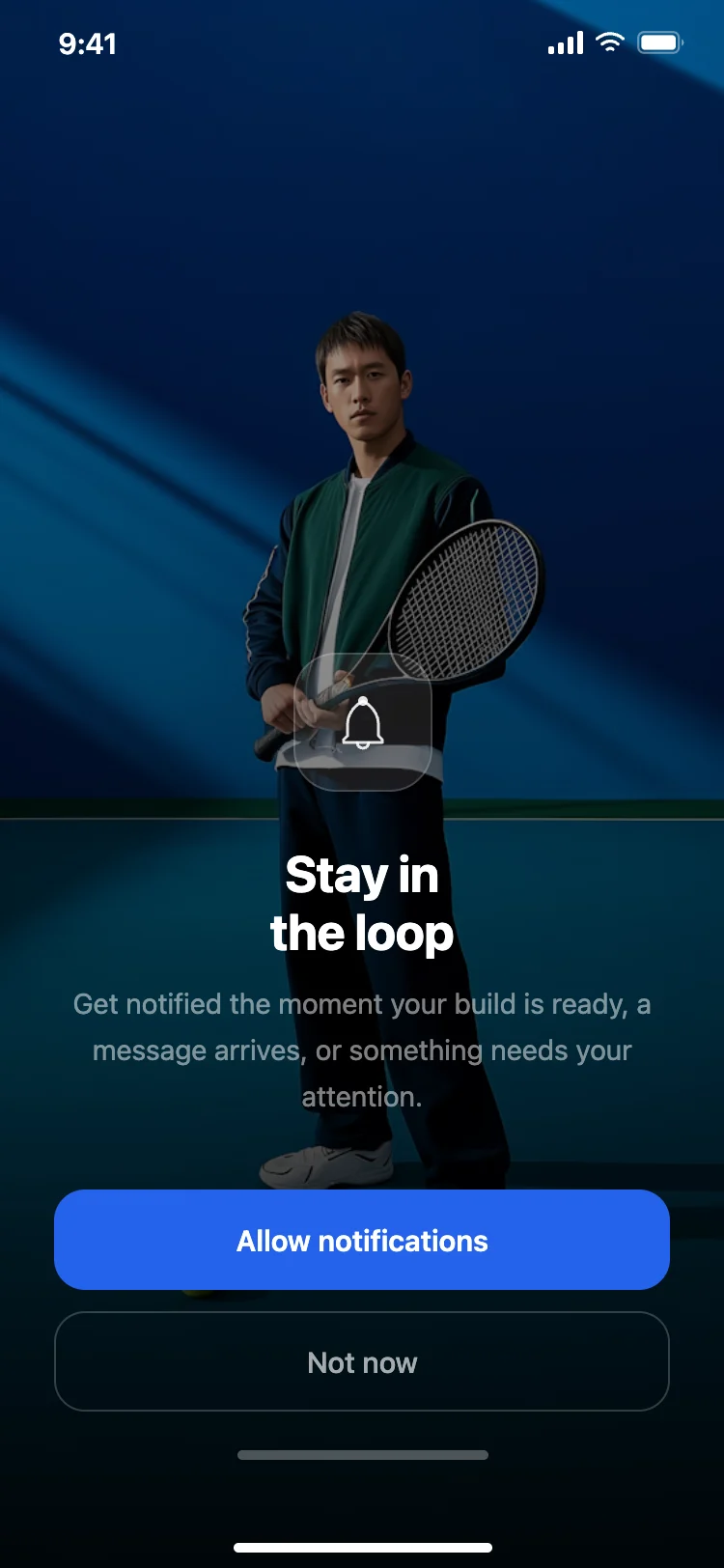
A short screen on why you need notifications or location before the system prompt.
Dots or a bar show how many steps are left.
Skip or Later on every step that is not essential.
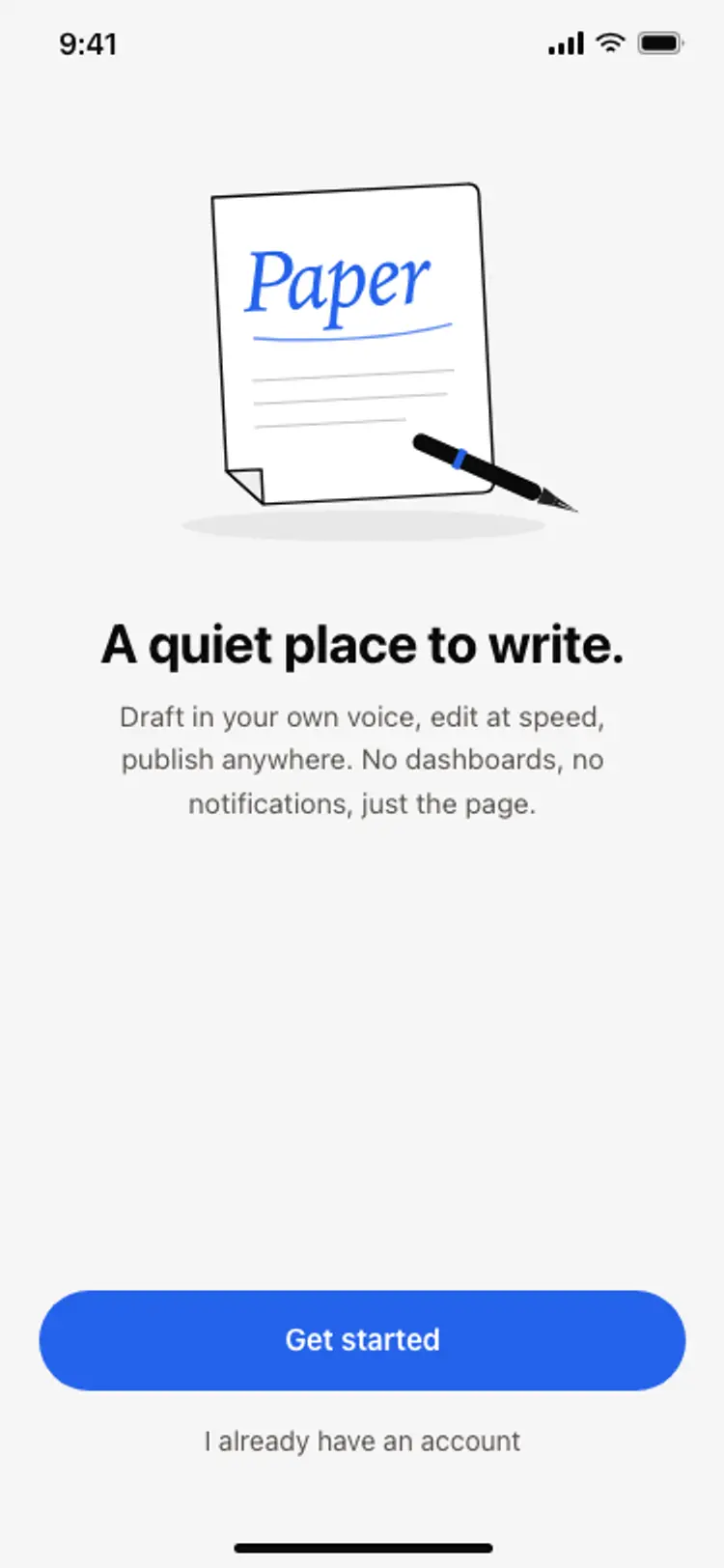
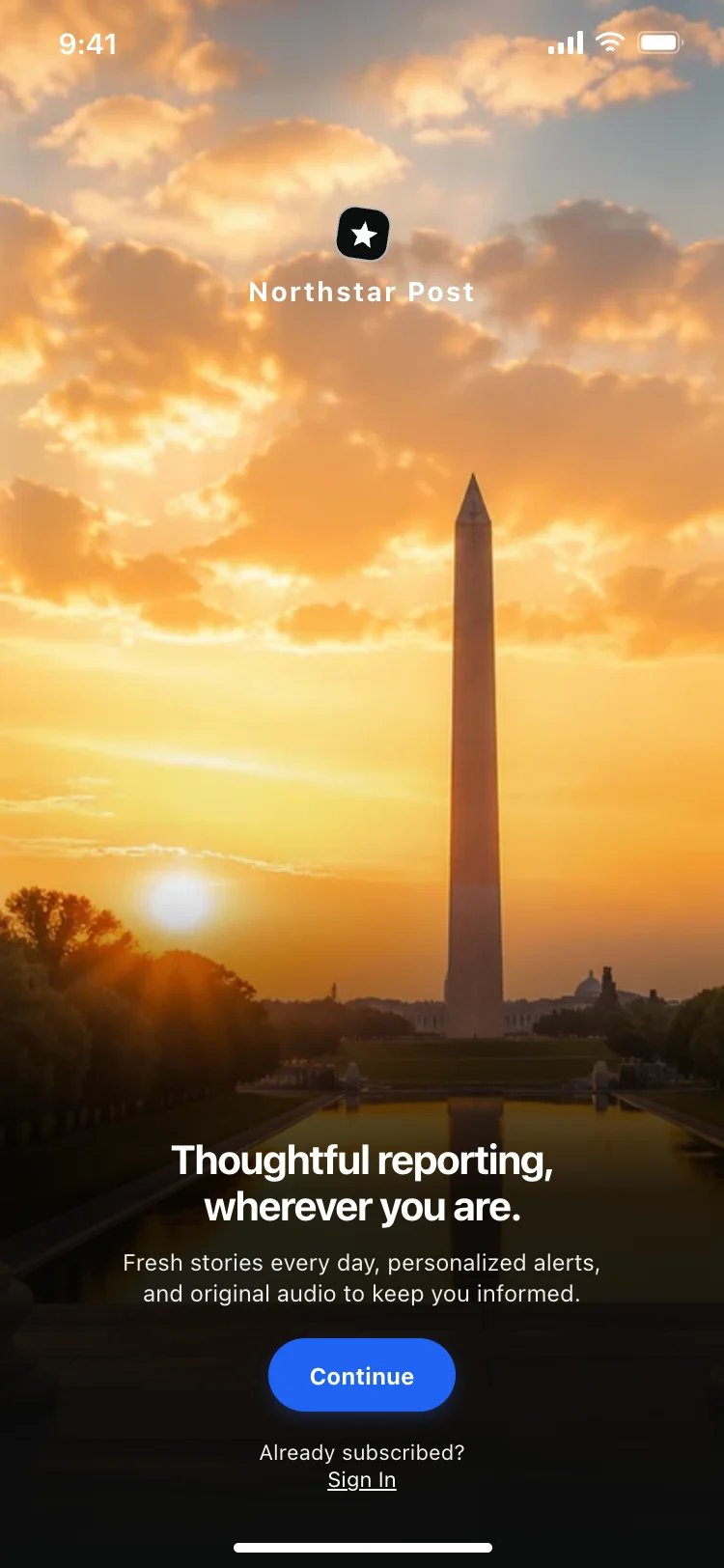
The logo and brand colour for the first second while the app loads.
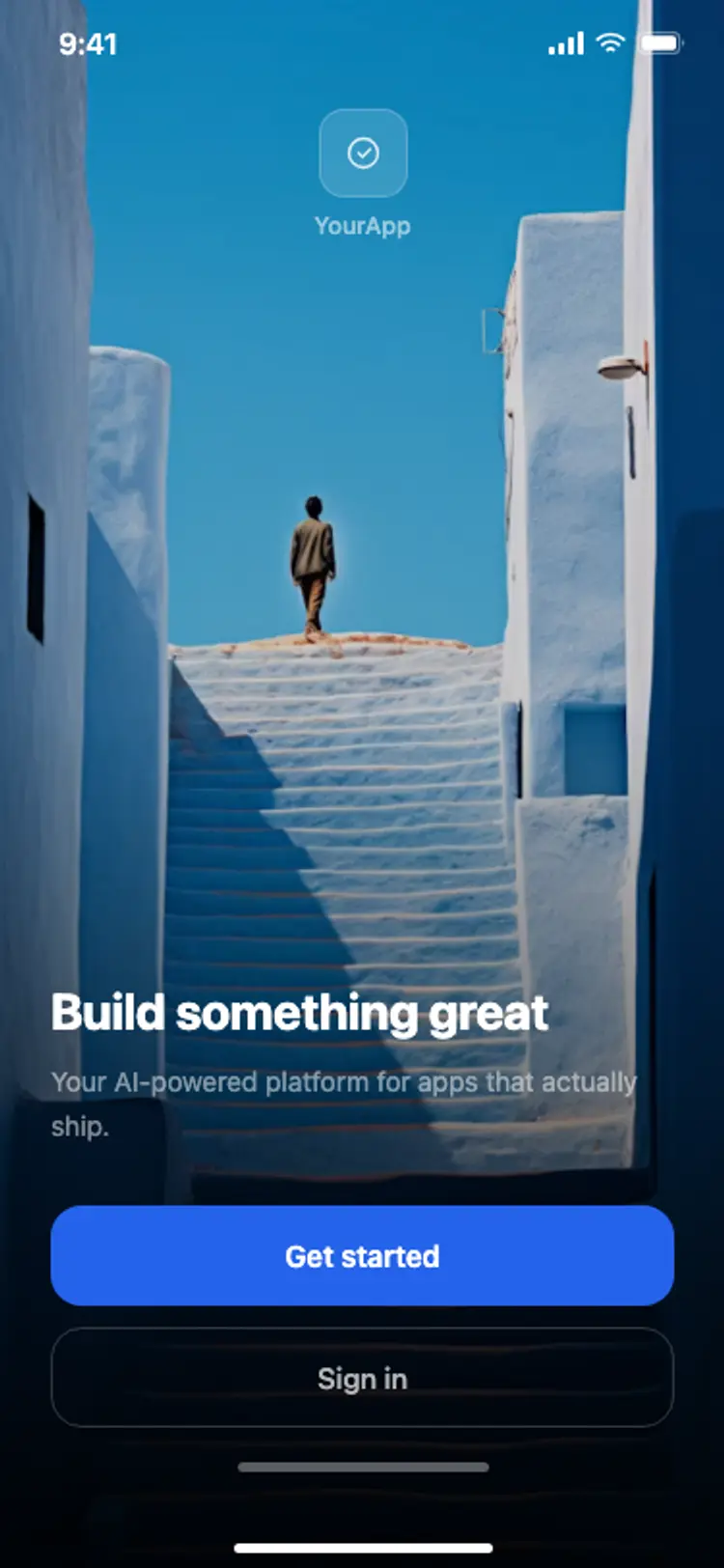
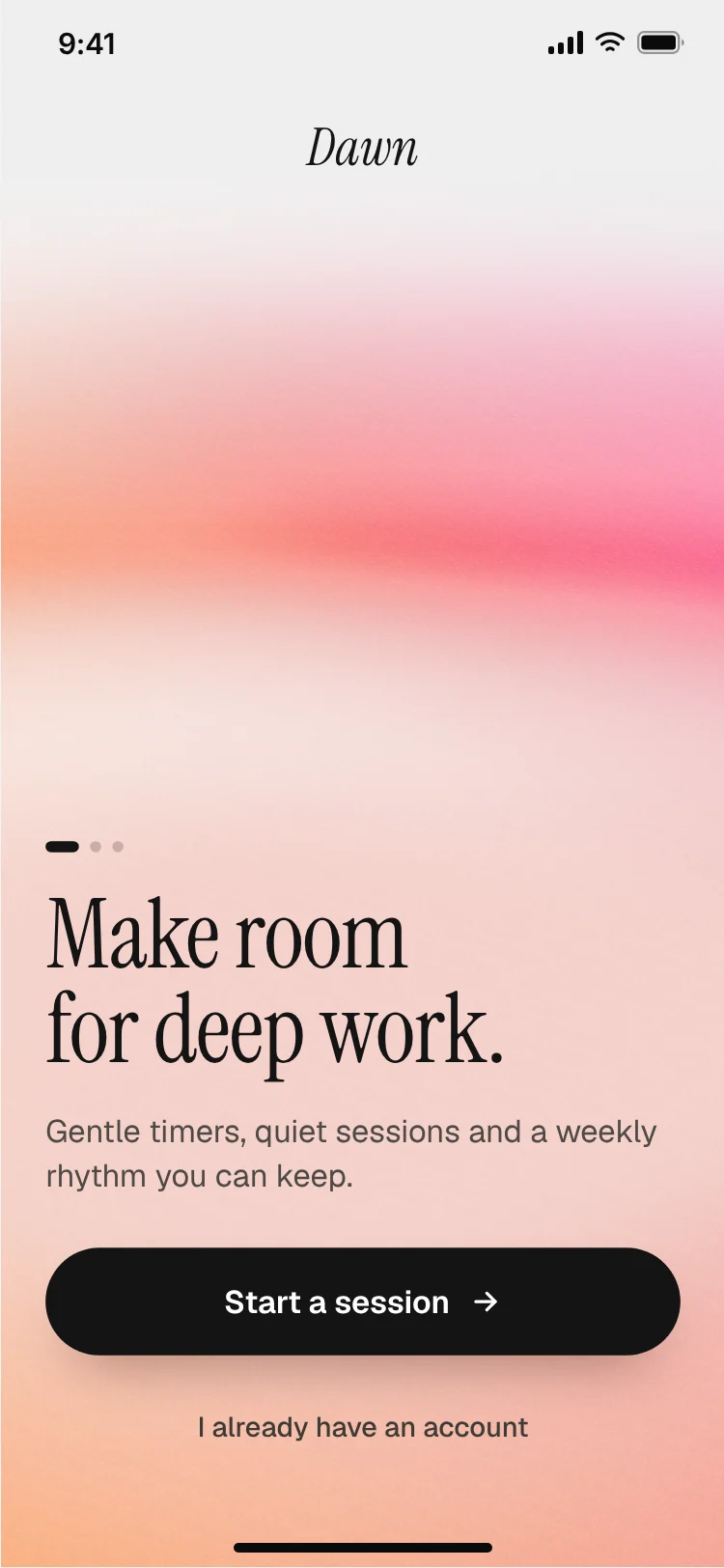
One line on what the app does and a single Get started button.
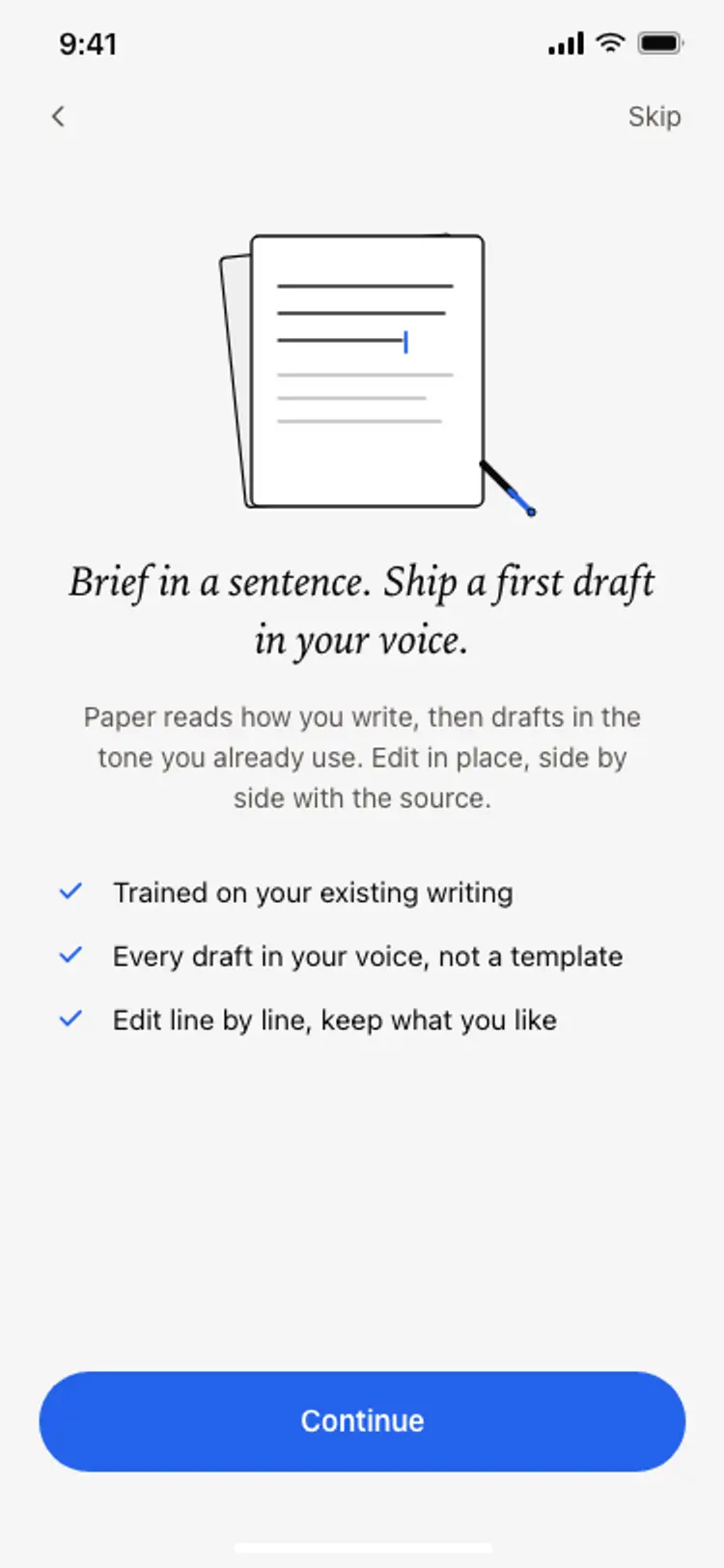
Two or three screens on the main benefits, swipeable and skippable.
A few questions about goals or interests that shape the app.
Your own screen explaining notifications or location before the system prompt.
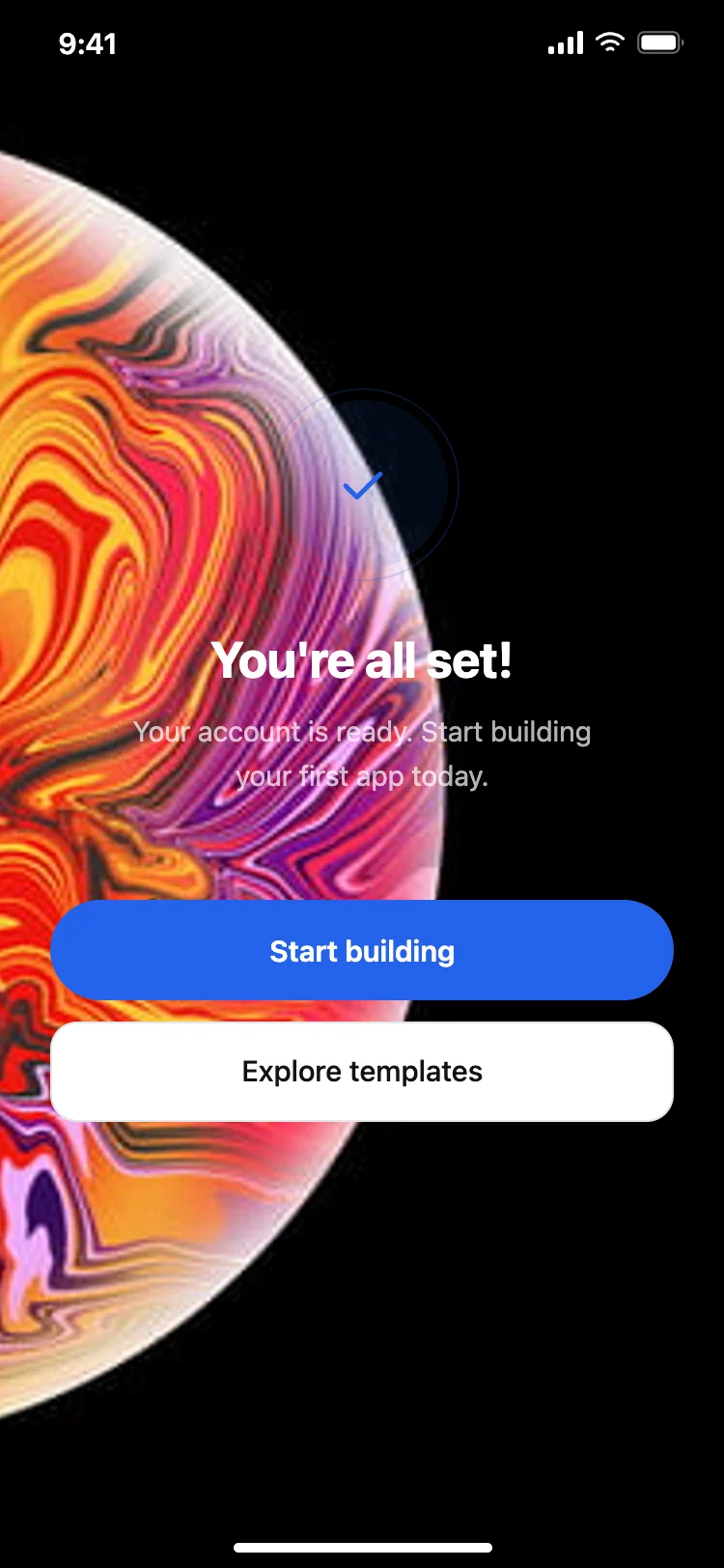
Account creation after the value is clear, with social sign in.
Value carousels show three to four swipeable screens about benefits. Personalisation flows ask a few questions and build a tailored home screen from the answers.
Interactive onboarding teaches by doing, guiding people through their first real action. Splash and welcome screens set the brand tone in the first second.
Measure where people drop off. Every extra screen in onboarding costs some users, so keep only the steps that clearly raise how many people stay.
Open any app onboarding design above to see it live and full size.
Copy the screen from its page. It is plain HTML and CSS at phone size.
Save it in your project and ask Cursor or Claude Code for it in React Native, Expo, SwiftUI or Flutter.
Ask the tool to swap in your copy, brand colours and links, keeping the layout and spacing.
Long tours lose people before they start.
Asked cold, most people tap Don't allow.
Asking for an account before showing value loses most installs.
Returning users and impatient ones need a way past.
It shows value fast, asks only useful questions, explains permissions, shows progress and lets people skip.
As few as possible, usually three to five, ending in the first real action in the app.
Usually yes. Show value first, then ask for an account when people want to save progress.
Explain the benefit on your own screen first, then show the system prompt only to people who say yes.
Yes. Ask Cursor or Claude Code to build these screens as a flow in React Native, Expo or SwiftUI.
Yes. They follow cross-platform patterns your AI tool can adapt per platform.
More design ideas