Calendar onboarding preferences app template
A calendar app onboarding preferences screen for iOS and Android. Step 3 of 4 with a progress bar, a What is on your calendar headline, and a two-column grid of six category cards: Work meetings, Personal time, Fitness, Travel, Tasks, and Deadlines. Two cards pre-selected. Continue button pinned at the bottom. Built for Bolt, Lovable, and Replit.
About this app template
Personalising a calendar before first use dramatically increases how useful it feels from day one. This onboarding step asks users to select which types of events they track. Six category cards sit in a two-column grid, each with an icon, a short title, and a one-line description. Work meetings and Personal time are pre-selected in blue with a checkmark badge. Fitness, Travel, Tasks, and Deadlines are inactive with grey icons and a light border. A four-dot progress indicator at the top shows this is step 3 of 4. The Continue button is pinned to the bottom with a gradient fade above it so the grid scrolls cleanly beneath it. Paste it into Bolt, Lovable, or Replit and ask your AI to make the cards tappable and save the selections to the user profile.
Build a full mobile app onboarding flow with this template design
An onboarding flow is a run of screens a new user sees back to back, which makes any inconsistency between them obvious, so one onboarding screen can set the standard for every screen after it. Copy the template, paste it into Claude Code, Replit, Lovable, ChatGPT Codex, Bolt, or Cursor, and send this alongside it.
Paste into Claude Code, Replit, Lovable, Bolt, or Cursor
Common questions about this template
How do I save the selected calendar categories to the user profile?
Paste this template into Bolt, Lovable, or Replit and ask your AI to add a click handler that toggles the selected state on each card and stores the selected category IDs in a user_preferences table when the user taps Continue.
How do I use the category selections to filter calendar views?
After saving the preferences, ask your AI to filter the event query on the home screen by the user's selected categories. Events with a category the user did not select are hidden by default and can be revealed with a filter toggle.
How do I add a skip option to this onboarding step?
Add a Skip link in the top-right corner next to the progress indicator. Ask your AI to route it to the next onboarding step or the home screen without saving any selections, so the app defaults to showing all event types.
Can I add more category cards to this screen?
Yes. Duplicate any card div, update the icon, title, and description, and add the new category to your data model. The two-column grid expands automatically and the content scrolls beneath the pinned Continue button.
Use this template for
- ·Calendar app onboarding preference selection screens for iOS and Android
- ·Event category setup steps in first-run onboarding flows
- ·Personalisation screens for productivity and scheduling apps
- ·Multi-select category pickers for calendar and task management tools
More from the Calendar app set
All 5 screens
More onboarding app templates
View allNews app onboarding screen
News app onboarding screen
Onboarding
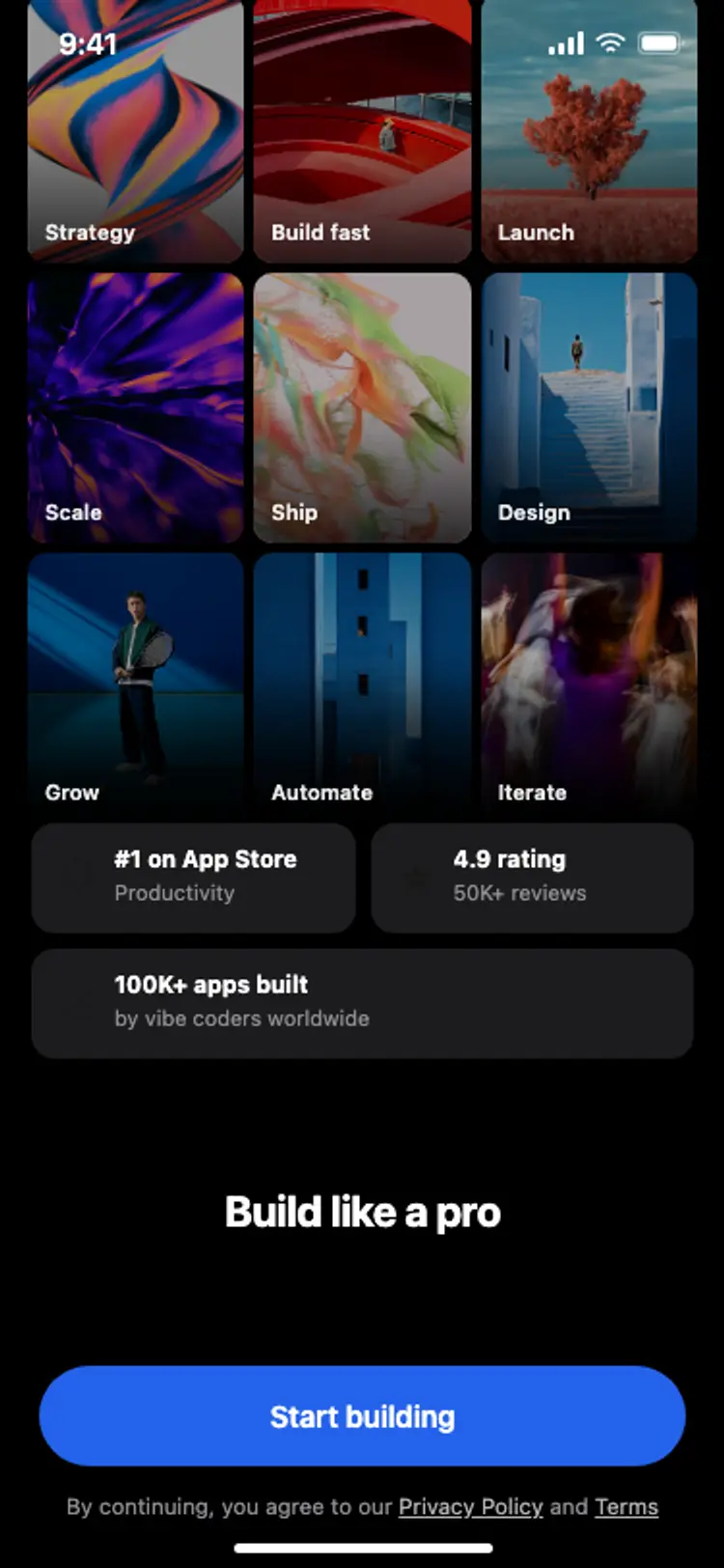
Onboarding with social proof
Onboarding with social proof
Onboarding
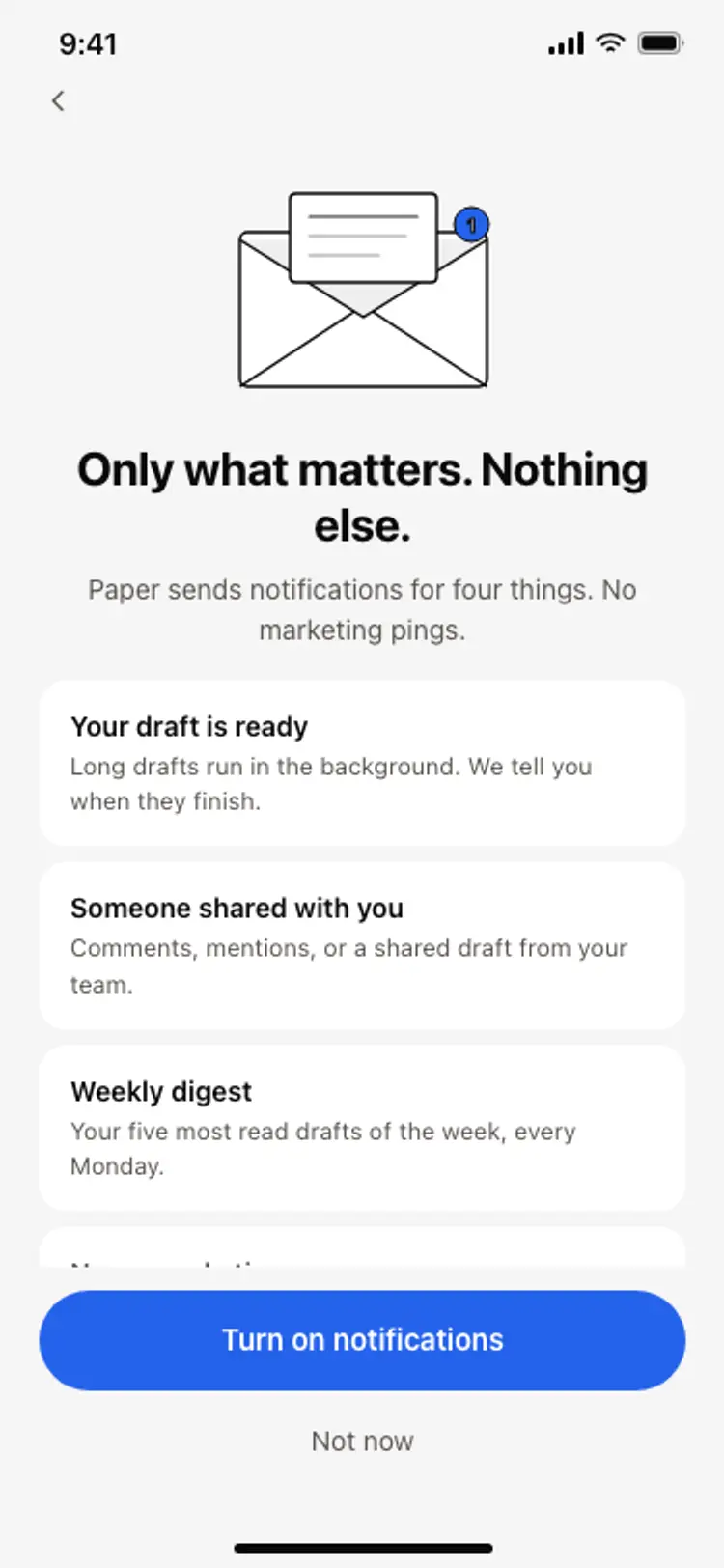
Notification preferences screen
Notification preferences screen
Onboarding
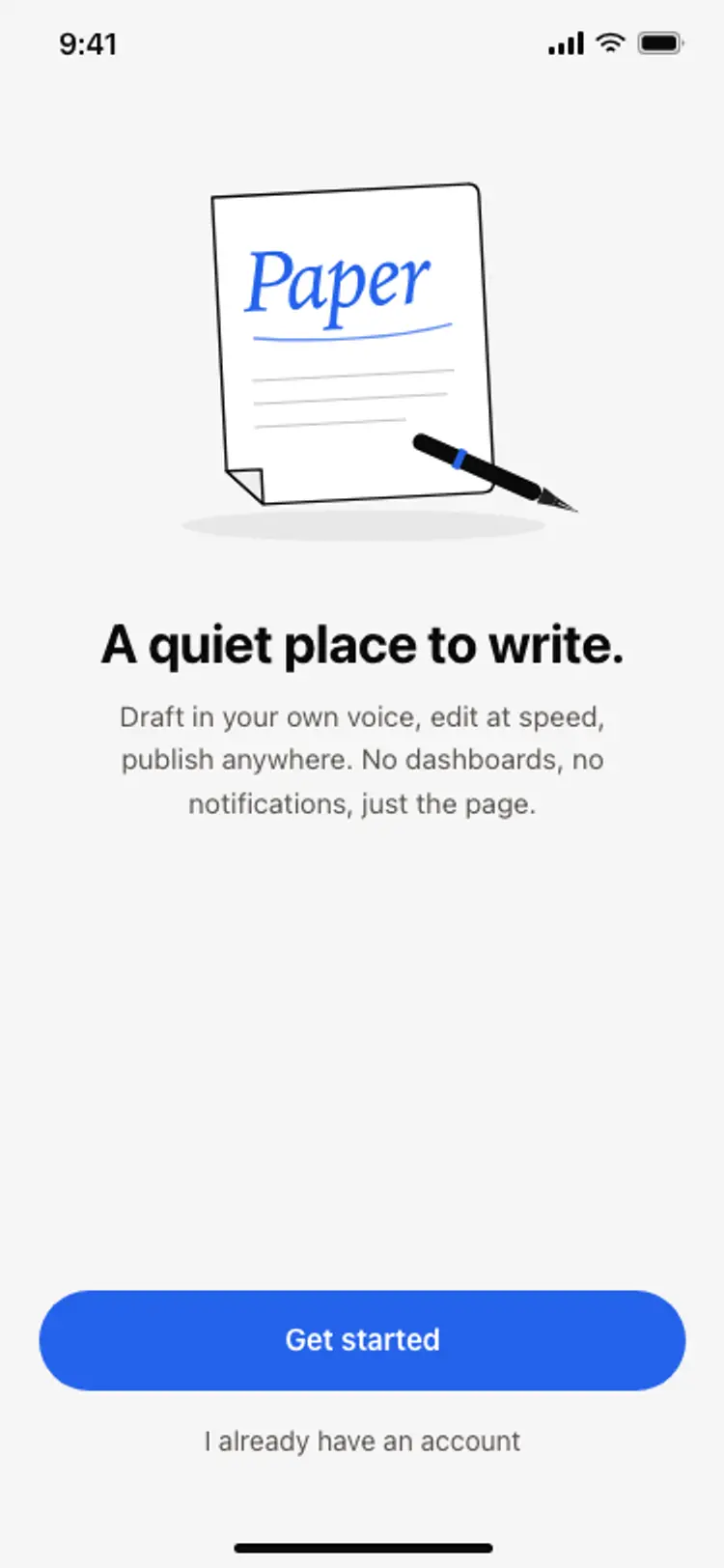
App onboarding welcome screen
App onboarding welcome screen
Onboarding
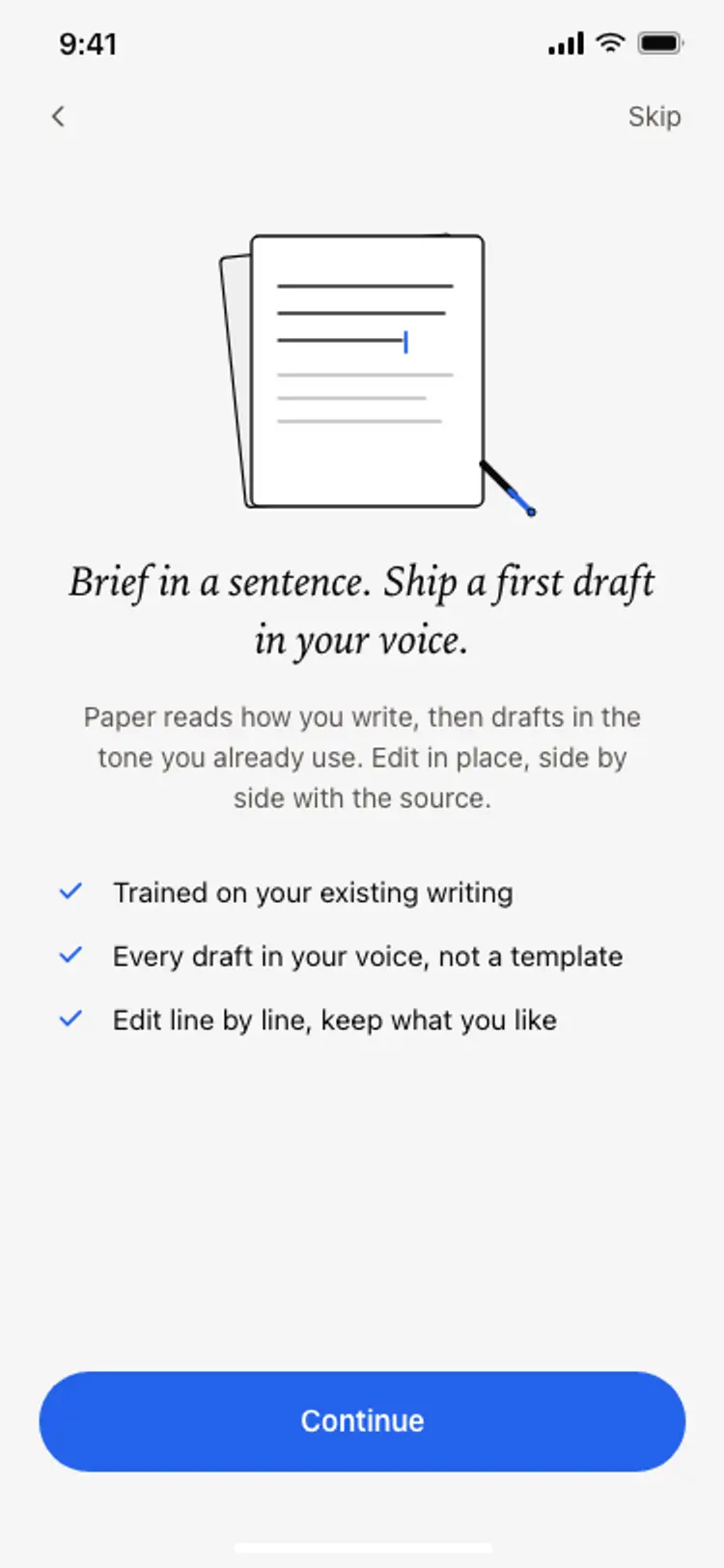
Onboarding benefits screen
Onboarding benefits screen
Onboarding
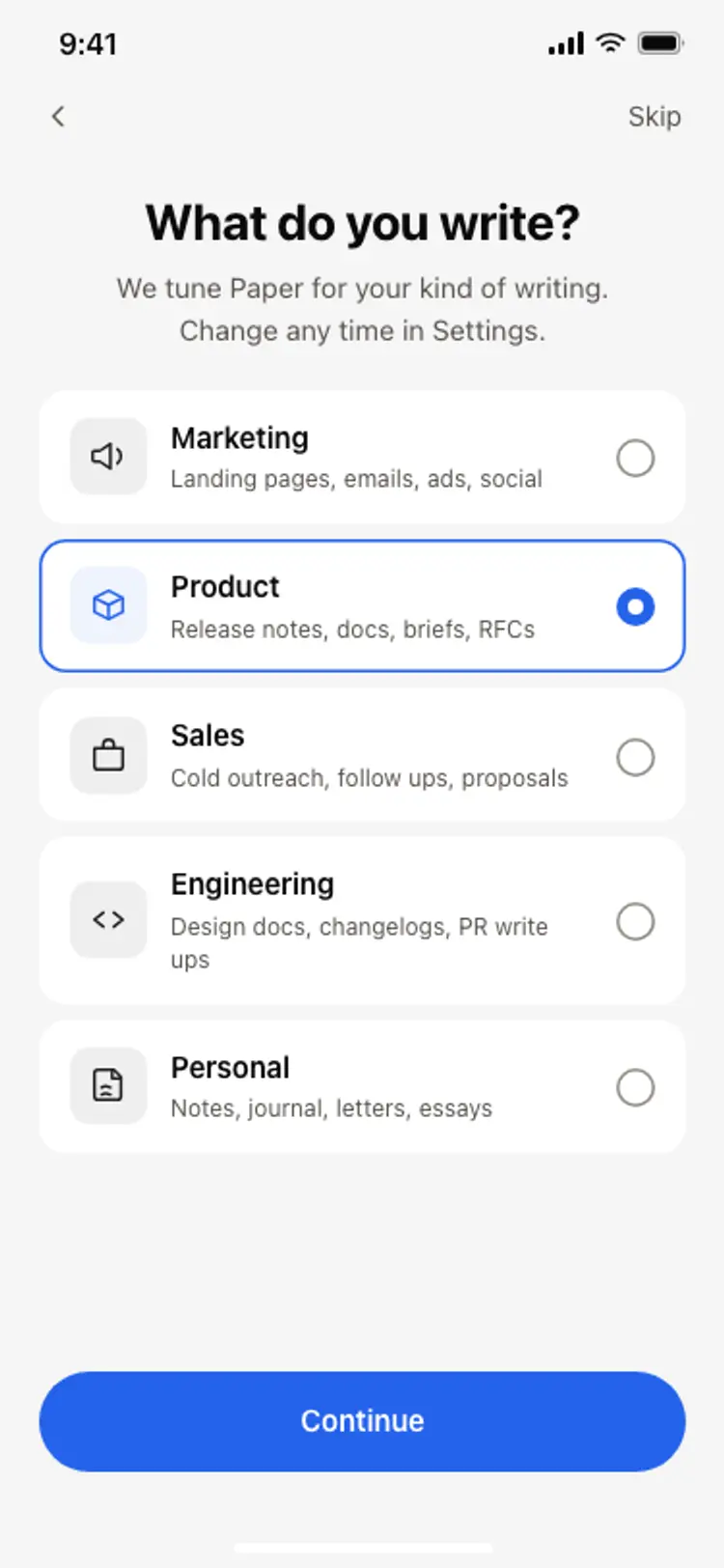
Onboarding role picker
Onboarding role picker
Onboarding
Other app templates you might like
See also
Browse app templates