Google Stitch navigation templates for AI websites and apps
Real navigation designs you can copy into Google Stitch. Google Stitch turns a pasted template into screens on Stitch's design canvas, which you can export along with a DESIGN.md for your coding agent. Below: the designs, how to set Google Stitch up so it keeps the design, and what makes a good navigation section.
Google Stitch navigation templates
65 navigation design templates for Google Stitch. Browse the full BrowserMoon library for every template category.
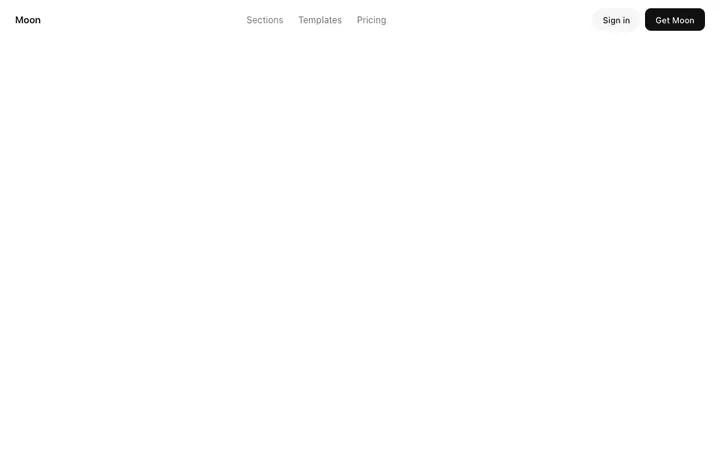
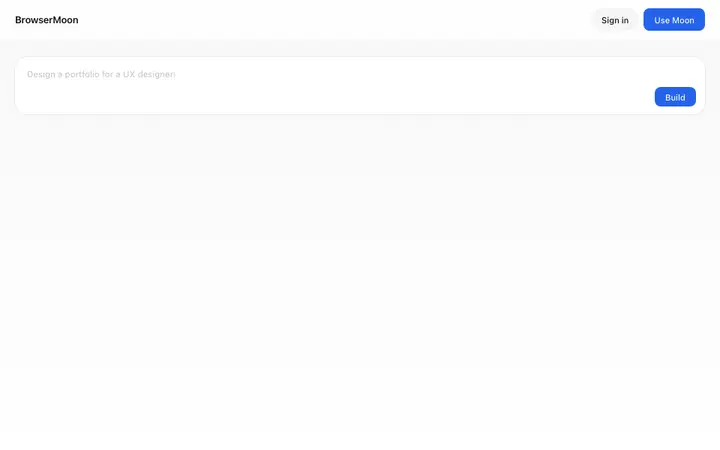
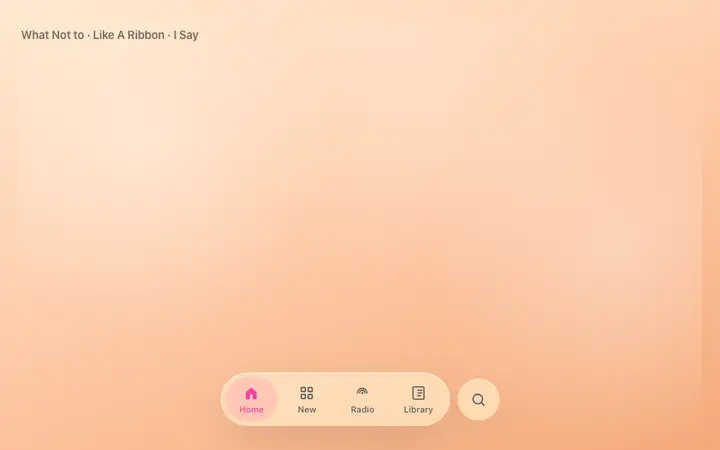
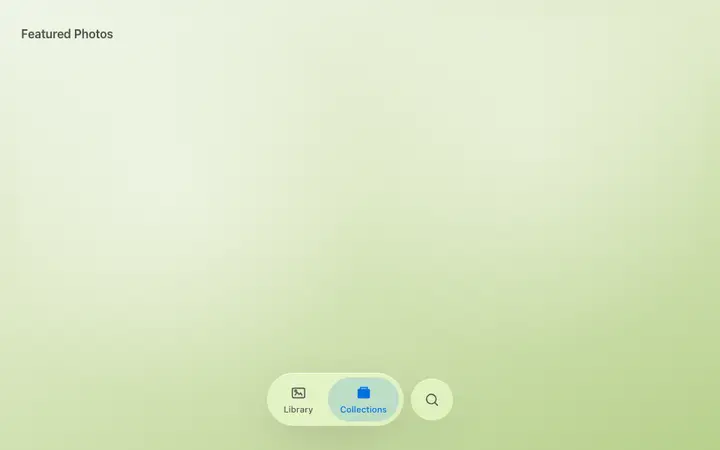
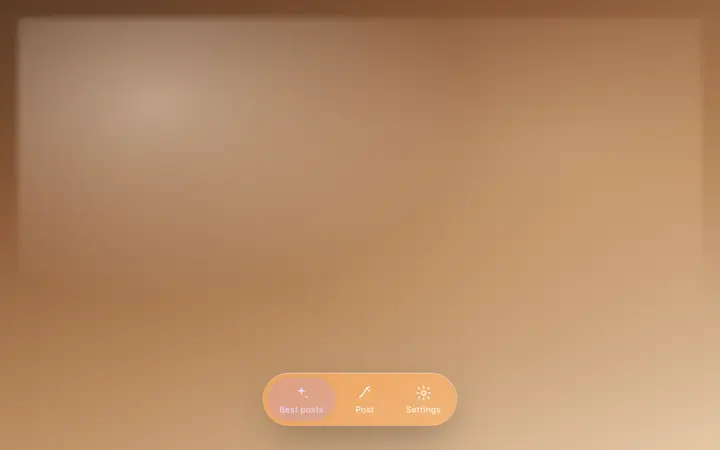
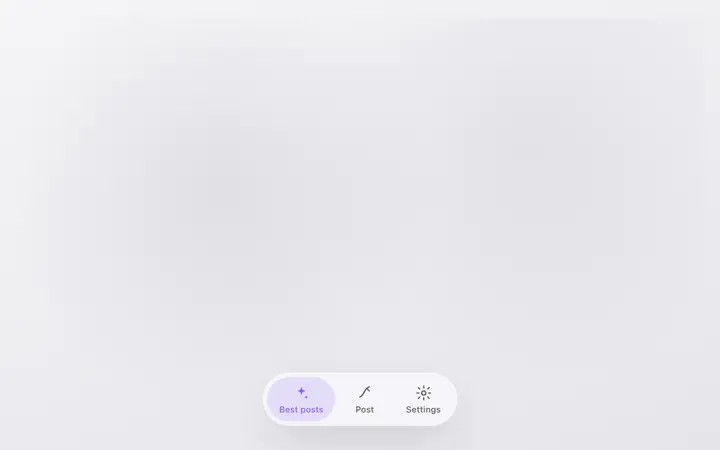
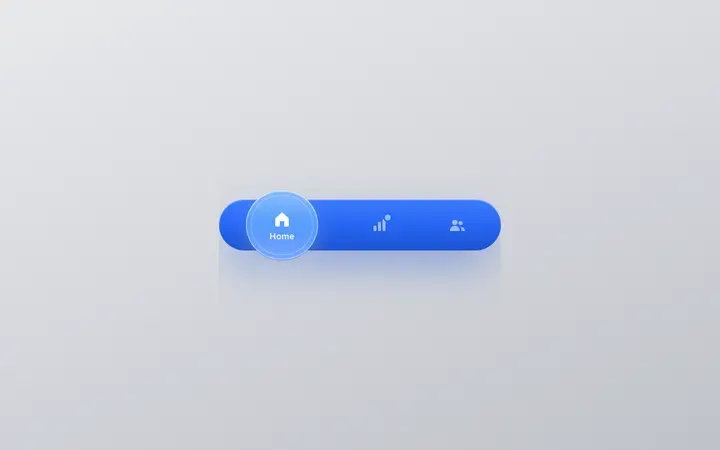
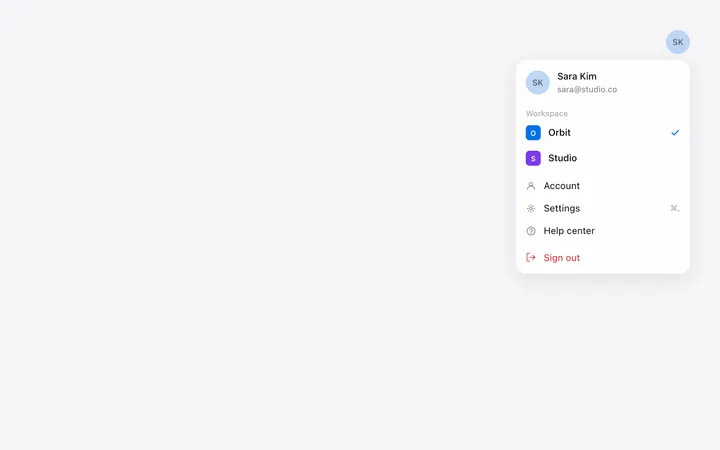
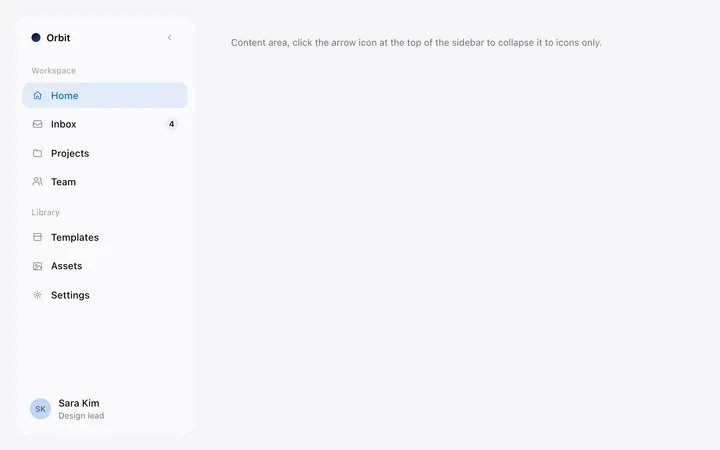
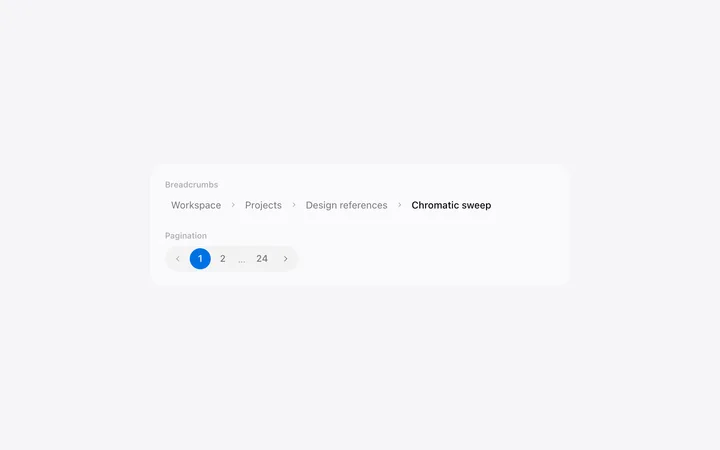
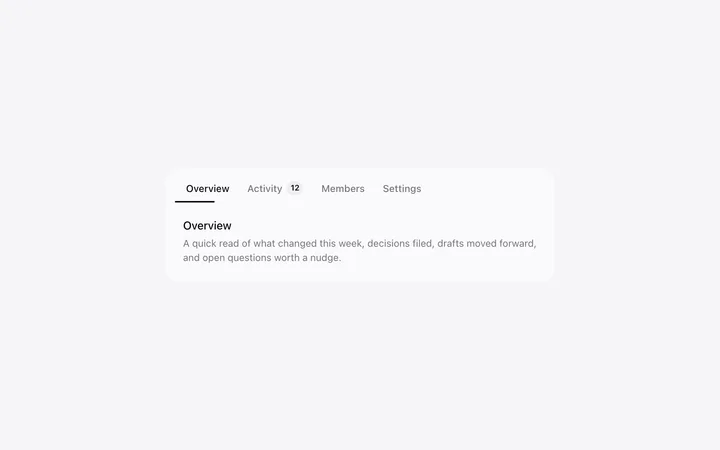
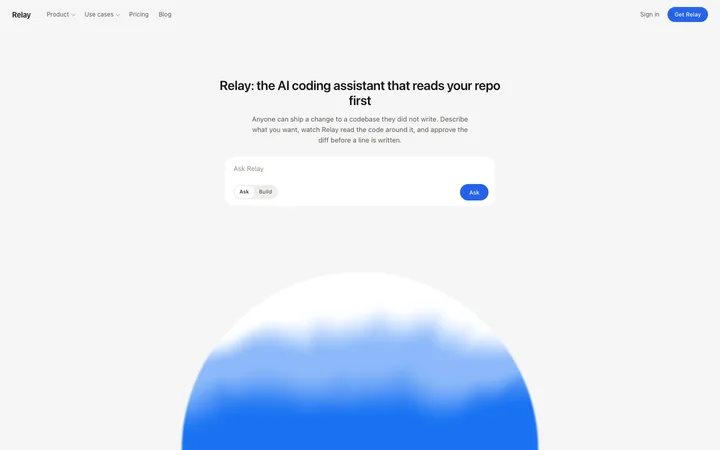
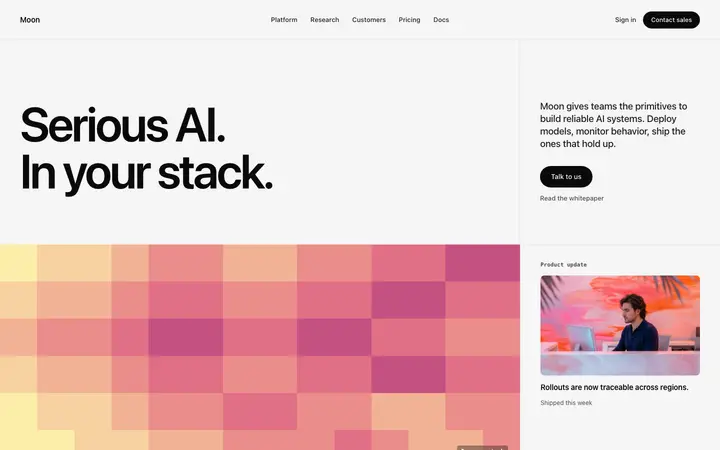
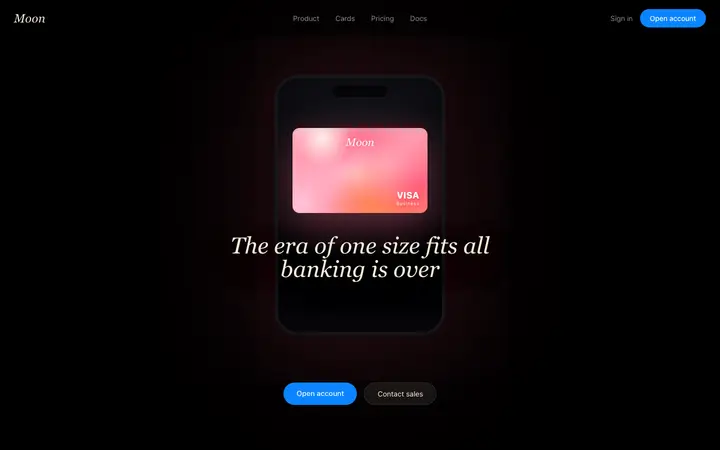
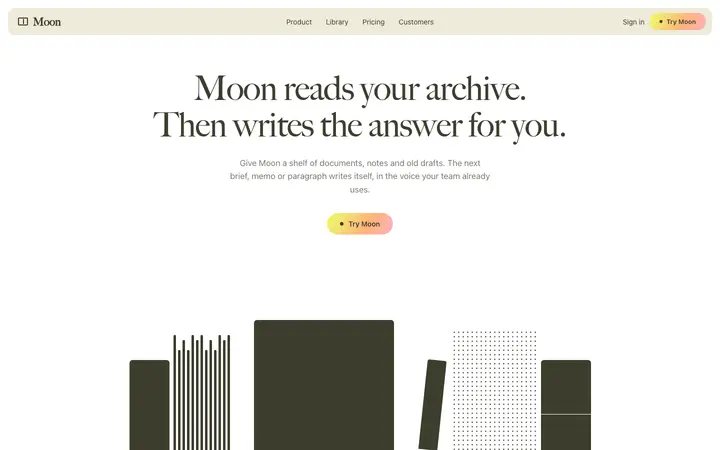
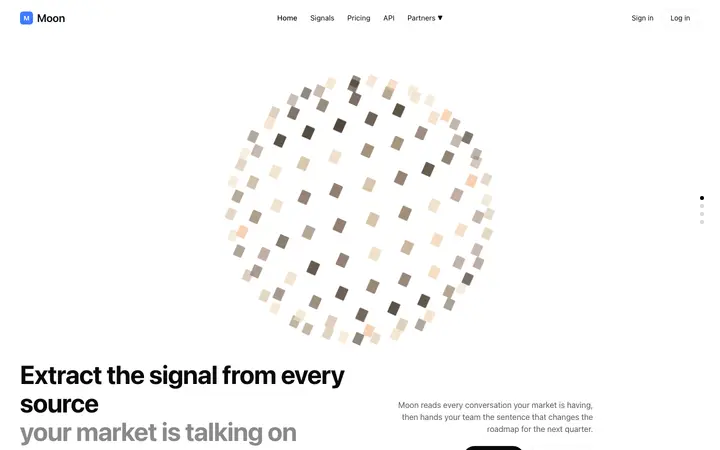
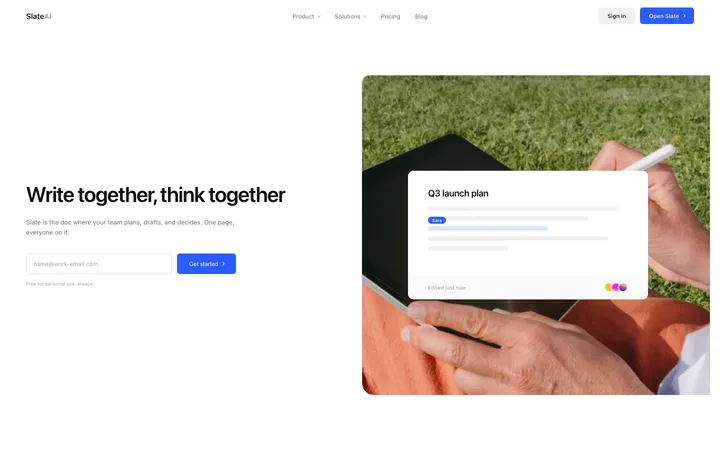
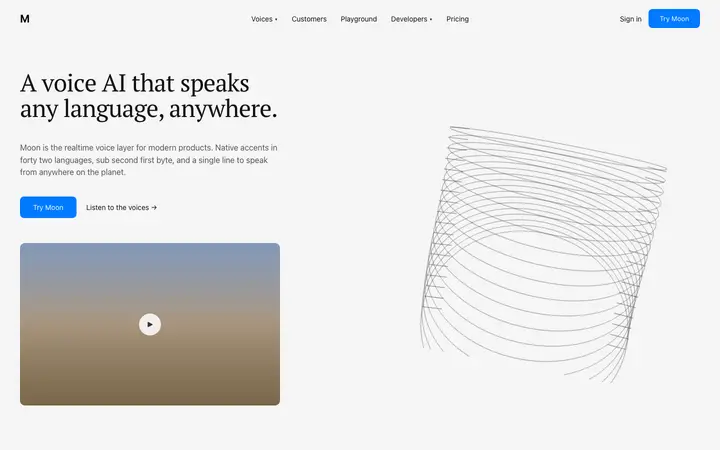
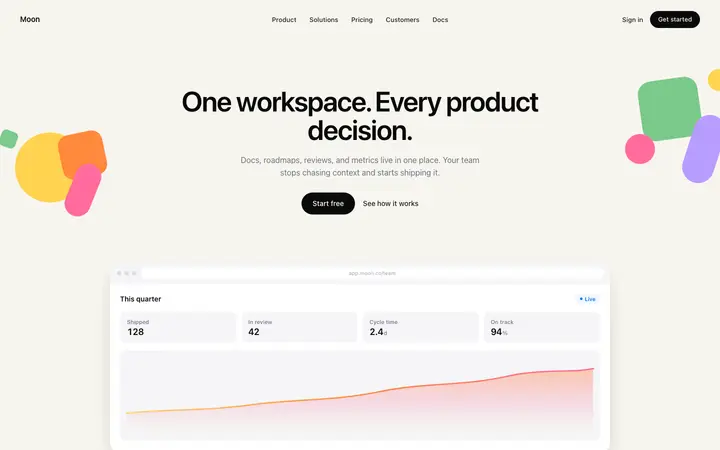
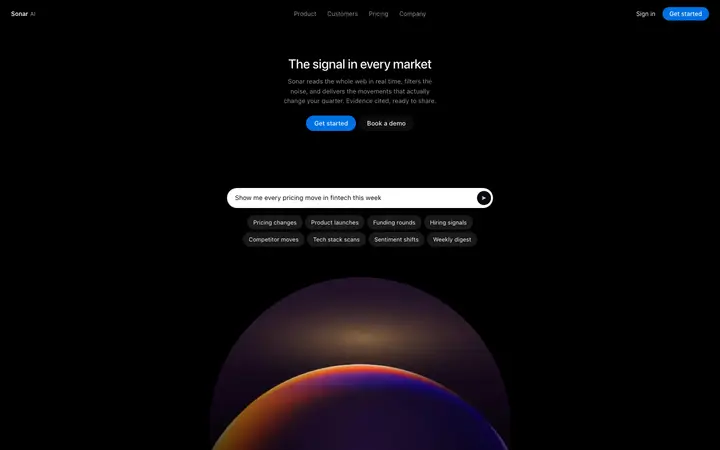
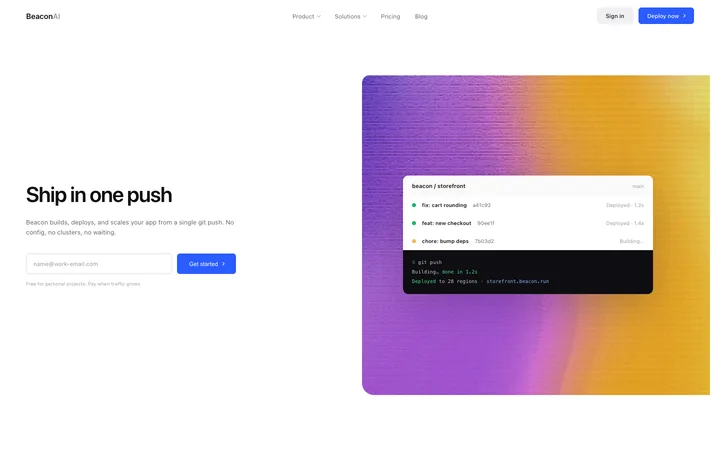
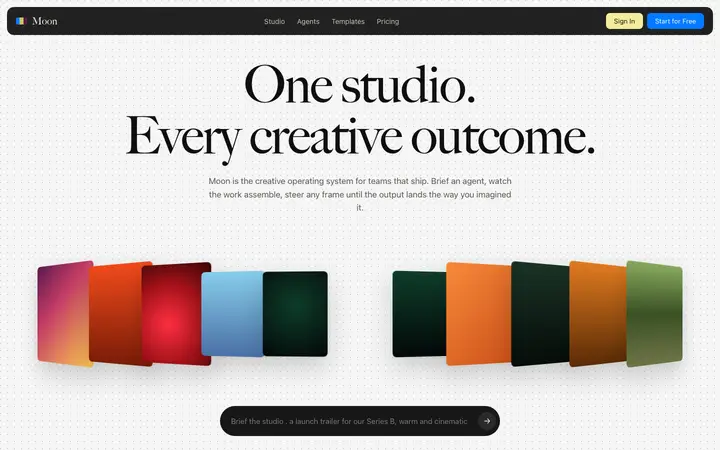
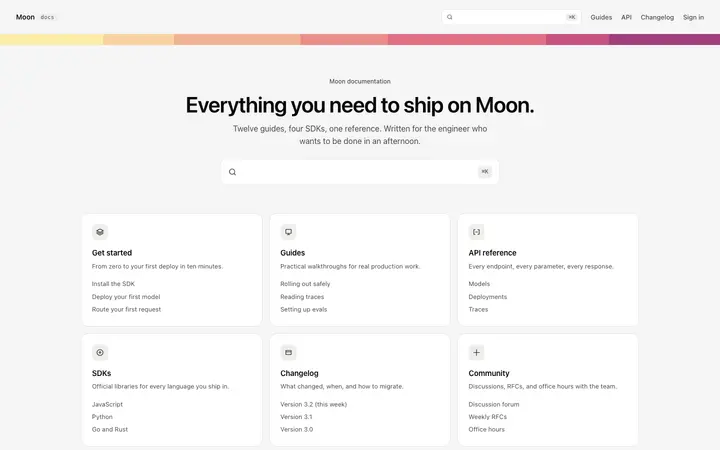

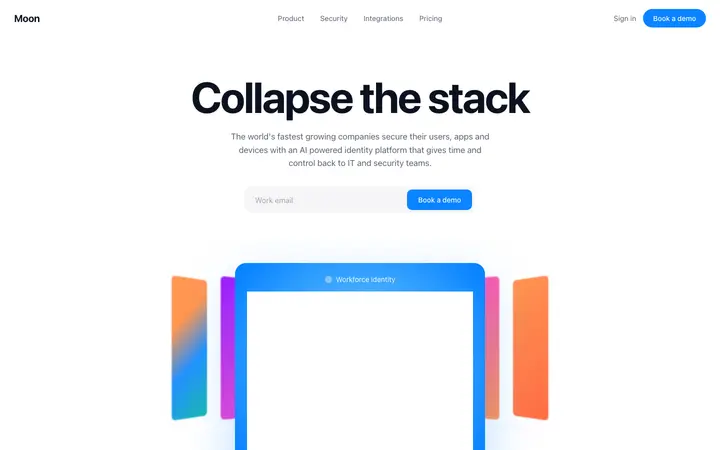
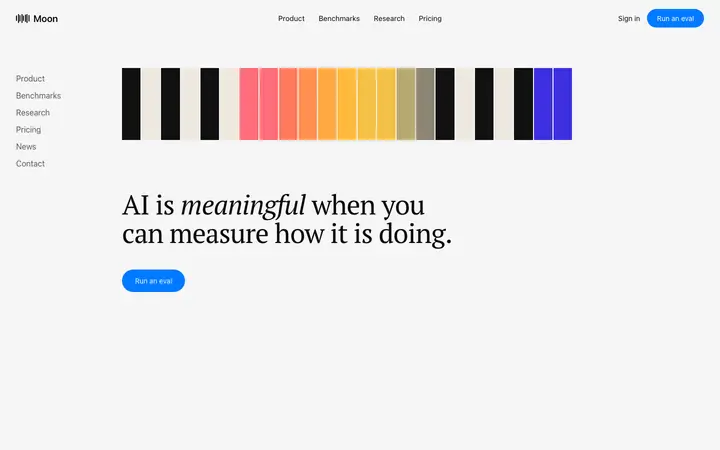
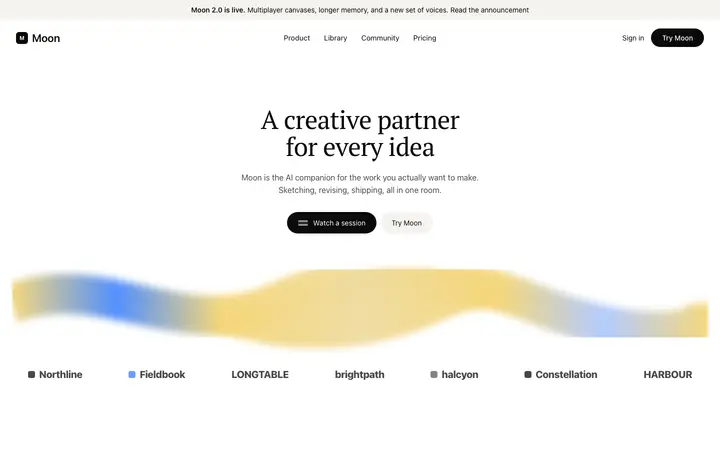
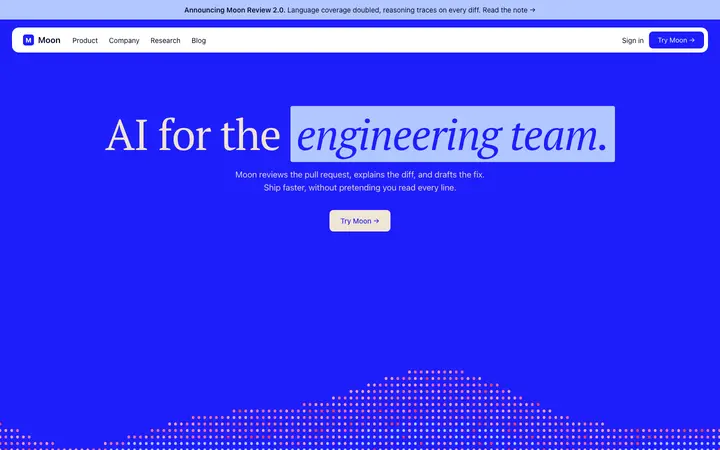
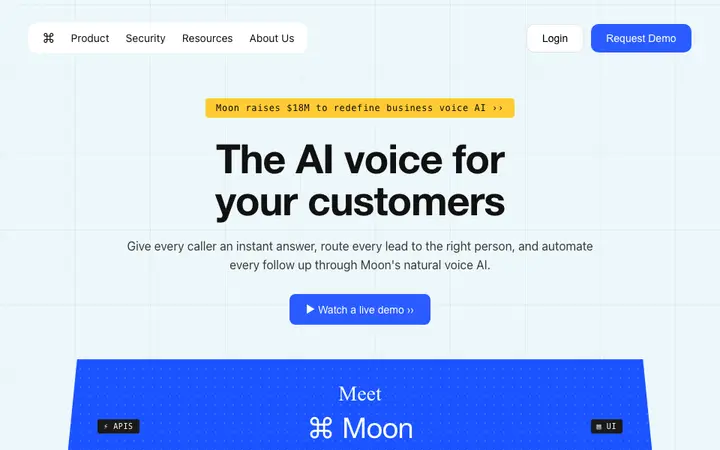
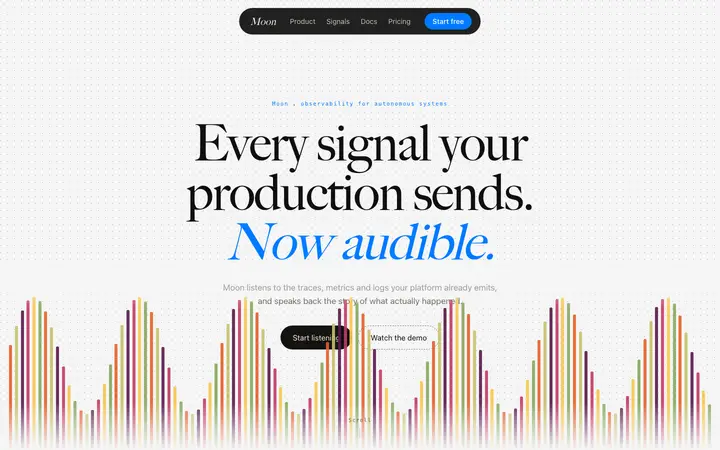
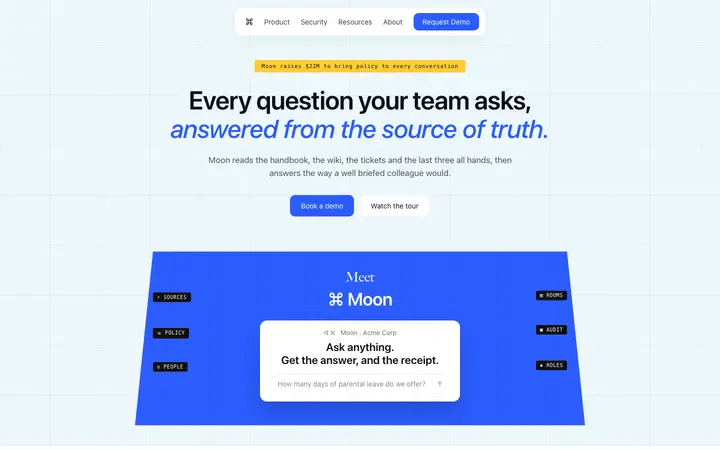
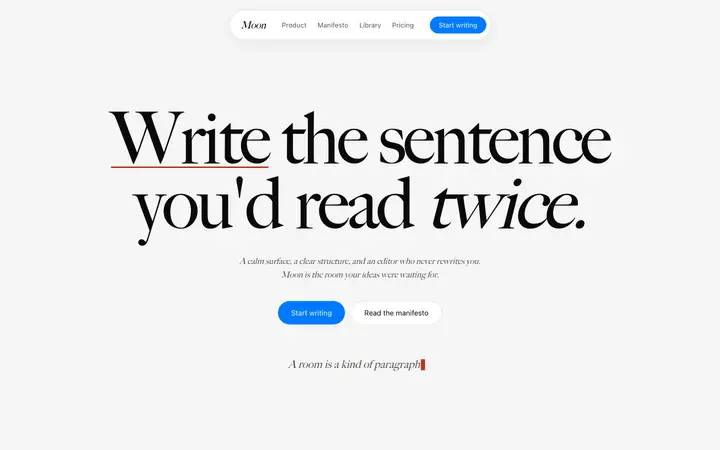
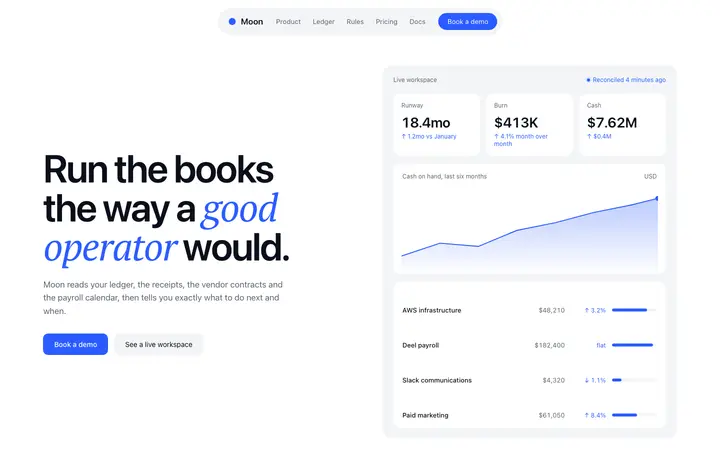
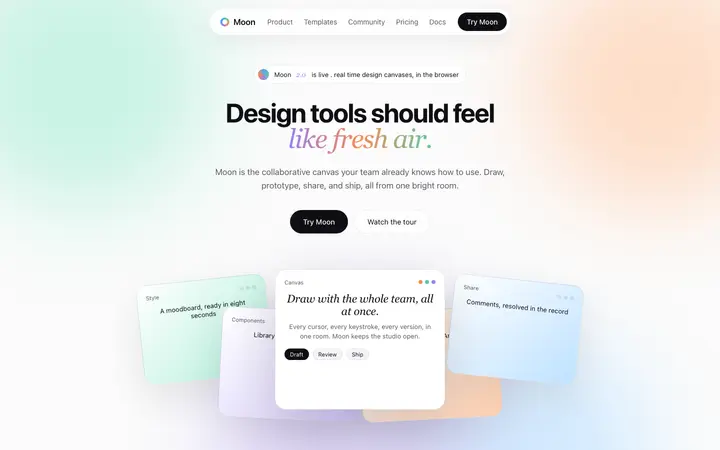
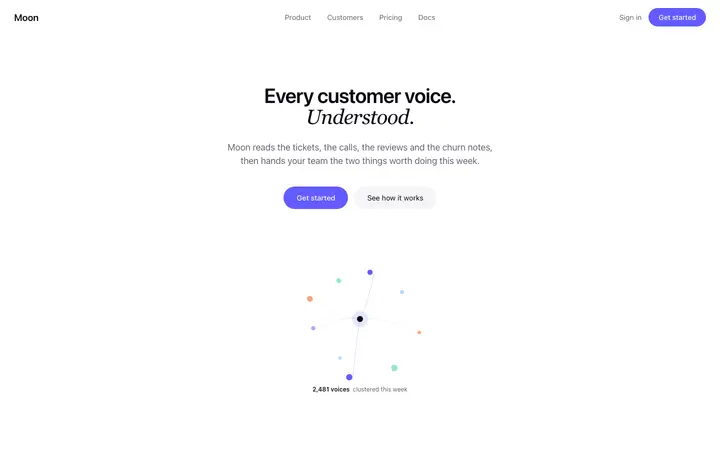
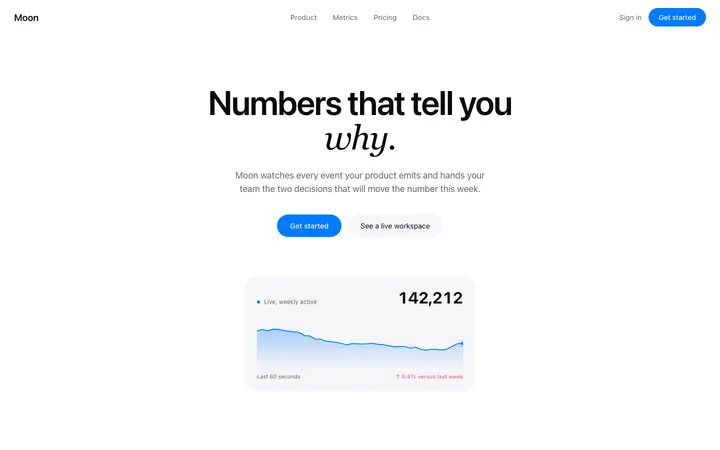
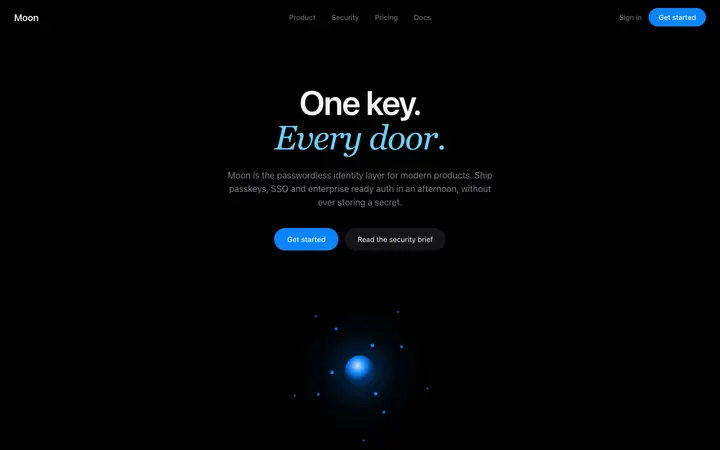
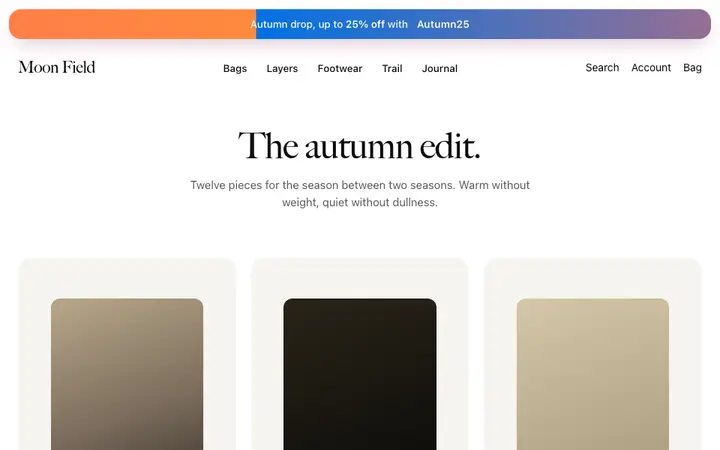
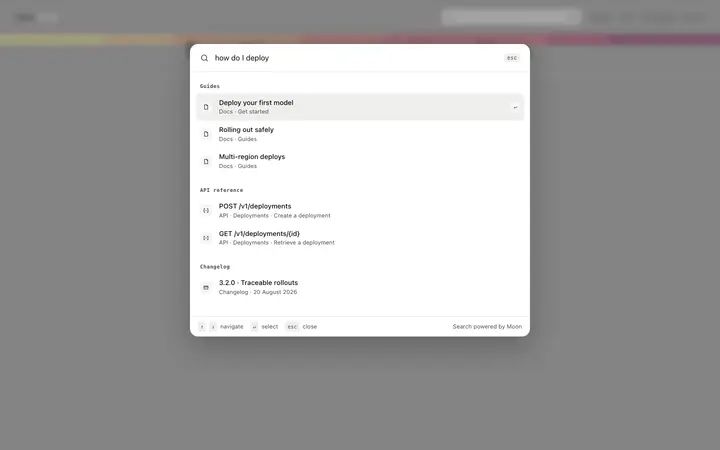
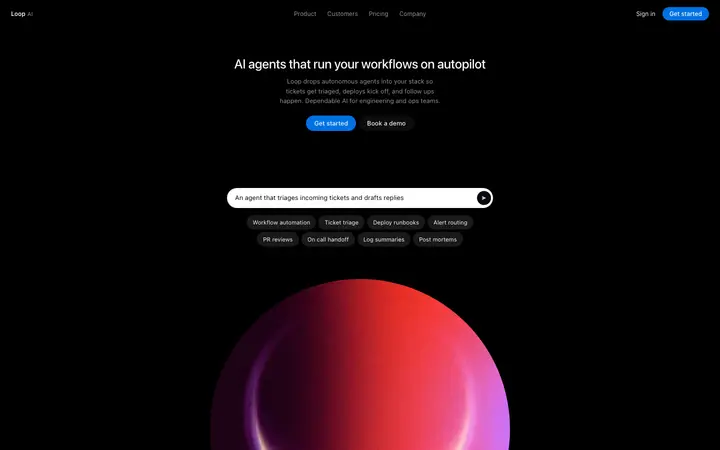
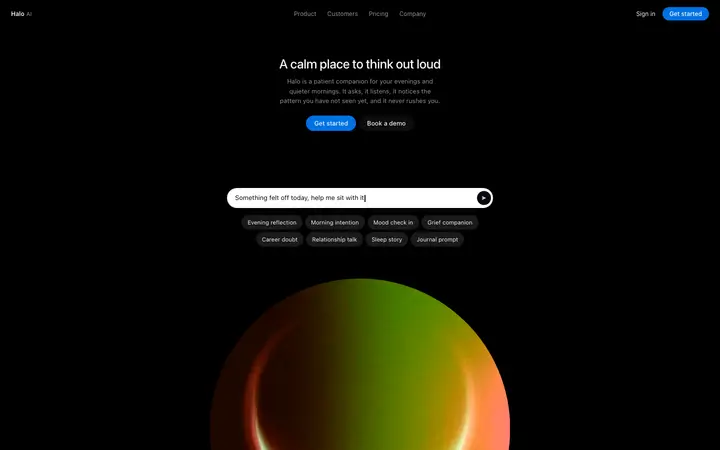
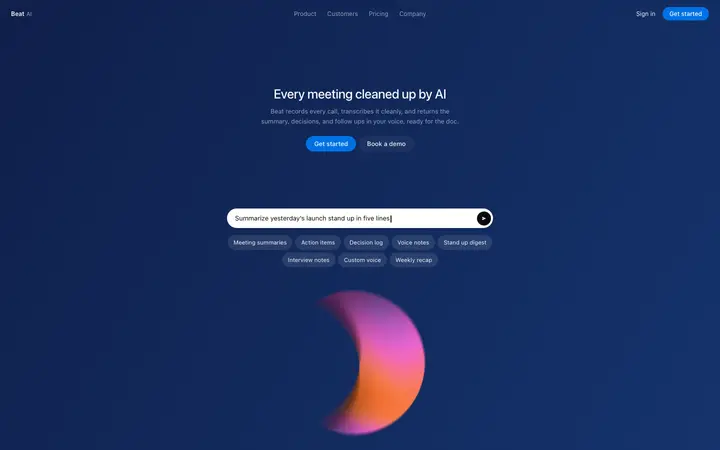
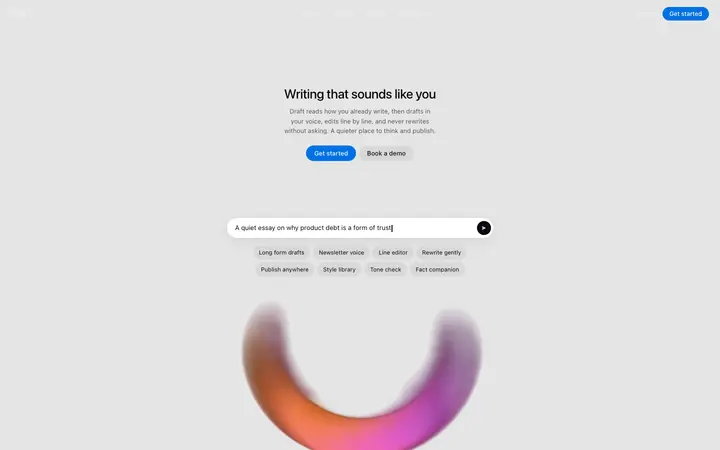
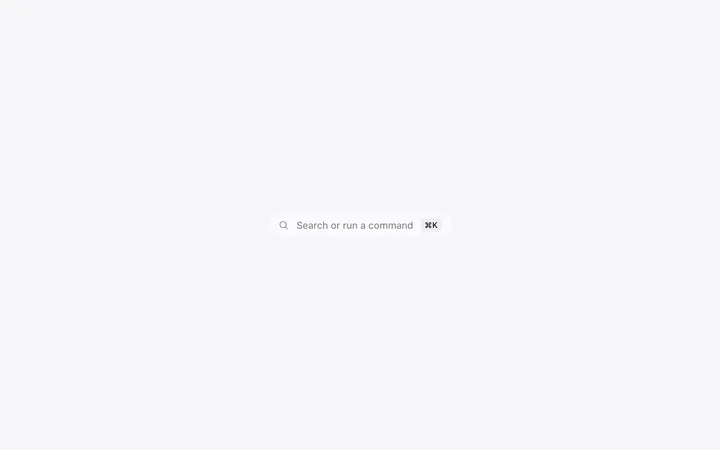
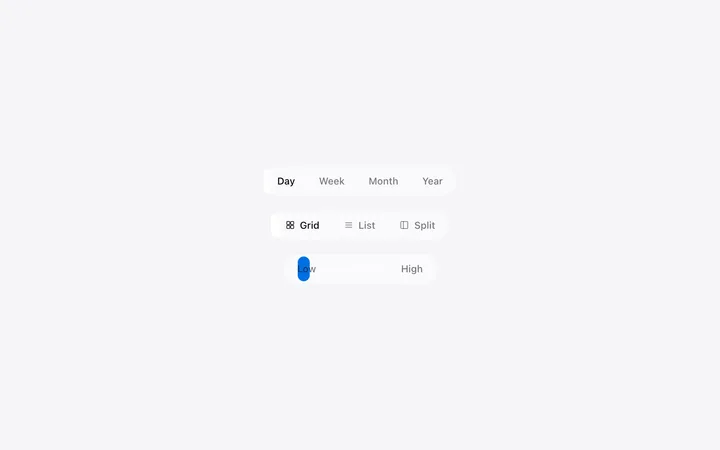
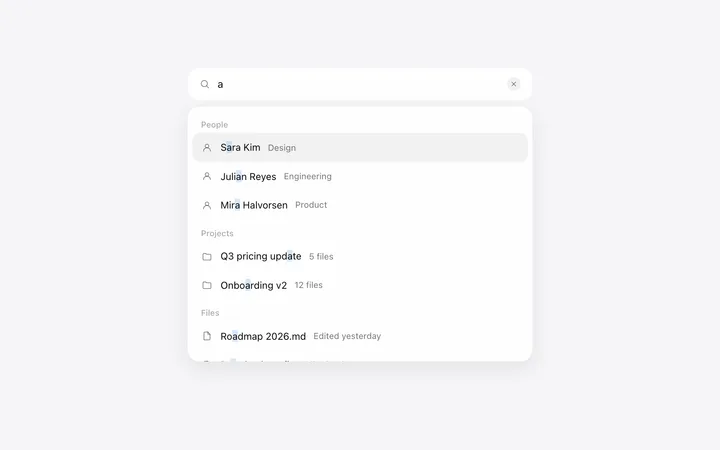
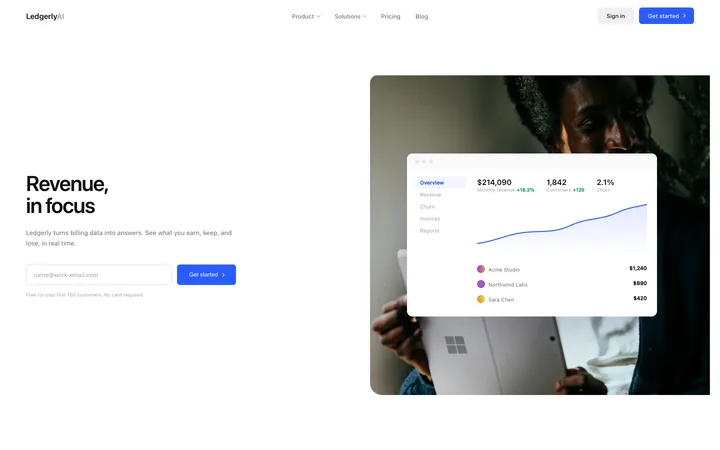
48 of 65
How to use navigation templates with Google Stitch
Pick a design
Choose a navigation design above and open it to see it live.
Copy the template
Copy the template from its page. It is one HTML file with no dependencies.
Set up Google Stitch
Bring the template's DESIGN.md into your Stitch project as its design system, so every generated screen uses its colours, type and spacing.
Prompt, then refine
Paste it and describe your product. Then follow up with: "Design this section using the imported design system. Keep its colours, type scale and spacing exactly."
What makes a good navigation section
Common types: solid bars with a hairline border, transparent bars over a hero, floating pill navbars and mega menus for large products.
Four to six links
More than six makes people scan instead of click.
One button that stands out
The main action on the right; sign in stays a plain link.
A real mobile menu
Large tap targets and the main button still visible.
Common mistake: Too many links and two competing buttons. Navbar design ideas →
Keeping the design in Google Stitch
Stitch generates screens from prompts on a design canvas, so it suits founders and designers who want to explore and design screens before any code is written.
What Google Stitch builds
Screens on Stitch's design canvas, which you can export along with a DESIGN.md for your coding agent.
Where the design goes
Bring the template's DESIGN.md into your Stitch project as its design system, so every generated screen uses its colours, type and spacing.
Google Stitch and navigation sections
Without a design system, each Stitch prompt invents its own style and screens stop matching. Paste the template again with your follow-up prompt if it starts to drift.
What to tell it
Keep the link count and the single primary button, and keep the mobile menu behaviour from the template.
Set it up once with our DESIGN.md templates.
Not sure which navigation design fits?
Ask Mon, the AI design assistant, describe your product and Mon suggests the navigation design and how to prompt Google Stitch with it.
Frequently asked questions
How do I use a navigation template in Google Stitch?
Bring the template's DESIGN.md into your Stitch project as its design system, then describe the screen you want. Bring the template's DESIGN.md into your Stitch project as its design system, so every generated screen uses its colours, type and spacing.
What does Google Stitch turn the template into?
Screens on Stitch's design canvas, which you can export along with a DESIGN.md for your coding agent.
How do I stop Google Stitch changing the design?
Without a design system, each Stitch prompt invents its own style and screens stop matching. A follow-up prompt that helps: "Design this section using the imported design system. Keep its colours, type scale and spacing exactly."
What makes a good navigation section?
Four to six links: more than six makes people scan instead of click. One button that stands out: the main action on the right; sign in stays a plain link. A real mobile menu: large tap targets and the main button still visible.
Any Google Stitch tips for navigation sections?
Without a design system, each Stitch prompt invents its own style and screens stop matching. Paste the template again with your follow-up prompt if it starts to drift.
More Google Stitch template categories
Navigation templates for other tools