E-commerce app home: product feed template
An e-commerce and shopping app home screen for iOS and Android. Search bar, scrollable category chips, a Stripe-style promotional banner with a gradient background, and a four-product grid with real furniture photography, product names, and prices with sale badges. Bottom tab bar with Home, Search, Bag, and Profile. Built for Bolt, Lovable, and Replit.
About this app template
Product discovery is the core job of any shopping app home screen. This template starts with a search bar and a row of category filter chips (All, Chairs, Tables, Lighting, Storage). A promotional banner below uses a gradient image background with white text announcing a seasonal sale, following the visual approach used by Stripe and Shopify's own admin surfaces. Below the banner, a two-column product grid shows four designer furniture pieces with real photography: a terracotta lounge chair, a pale Eames-style side chair, a velvet armchair, and a dark organic armchair. Each card has a rounded image container, a product name, a price, and an optional strikethrough sale price. The bottom tab bar has Home, Search, Bag, and Profile icons. Paste into Bolt, Lovable, or Replit and ask your AI to wire the grid to a products table or Shopify Storefront API.
Build a full mobile app with this template design
A mobile app is many screens a user moves between quickly, which makes any inconsistency obvious, so one screen can set the standard for every screen after it. Copy the template, paste it into Claude Code, Replit, Lovable, ChatGPT Codex, Bolt, or Cursor, and send this alongside it.
Paste into Claude Code, Replit, Lovable, Bolt, or Cursor
Common questions about this template
How do I connect this product grid to a real product catalogue?
Paste this template into Bolt, Lovable, or Replit and ask your AI to fetch products from your Supabase products table or the Shopify Storefront API. Map the response to the product card component: image URL, name, price, and optional compare-at price for the strikethrough.
How do I make the category chips filter the product grid?
Ask your AI to store the active category in local state. When a chip is tapped, update the active chip style and re-fetch the product grid filtered by that category. Add a short fade transition between the old and new product list.
How do I add a wishlist button to each product card?
Add a small heart icon button in the top-right corner of each product image container. Ask your AI to toggle the filled vs outline state on tap and persist the wishlist selection to a user_wishlists table linked to the authenticated user.
How do I add a badge to flag sale or new items?
Add a small absolute-positioned chip in the top-left corner of the image container. Show it only when the product has a compare-at price or a new flag in your data. Use a light background and short text like Sale or New. Keep it small so it does not obscure the product image.
Use this template for
- ·E-commerce and shopping app home screen templates for iOS and Android
- ·Furniture and lifestyle product feed screens for Bolt, Lovable, and Replit vibe coding
- ·Shopify mobile app home screens with product grids for vibe coding
- ·Fashion and retail app product discovery screens for mobile app builders
More from the Shopping app set
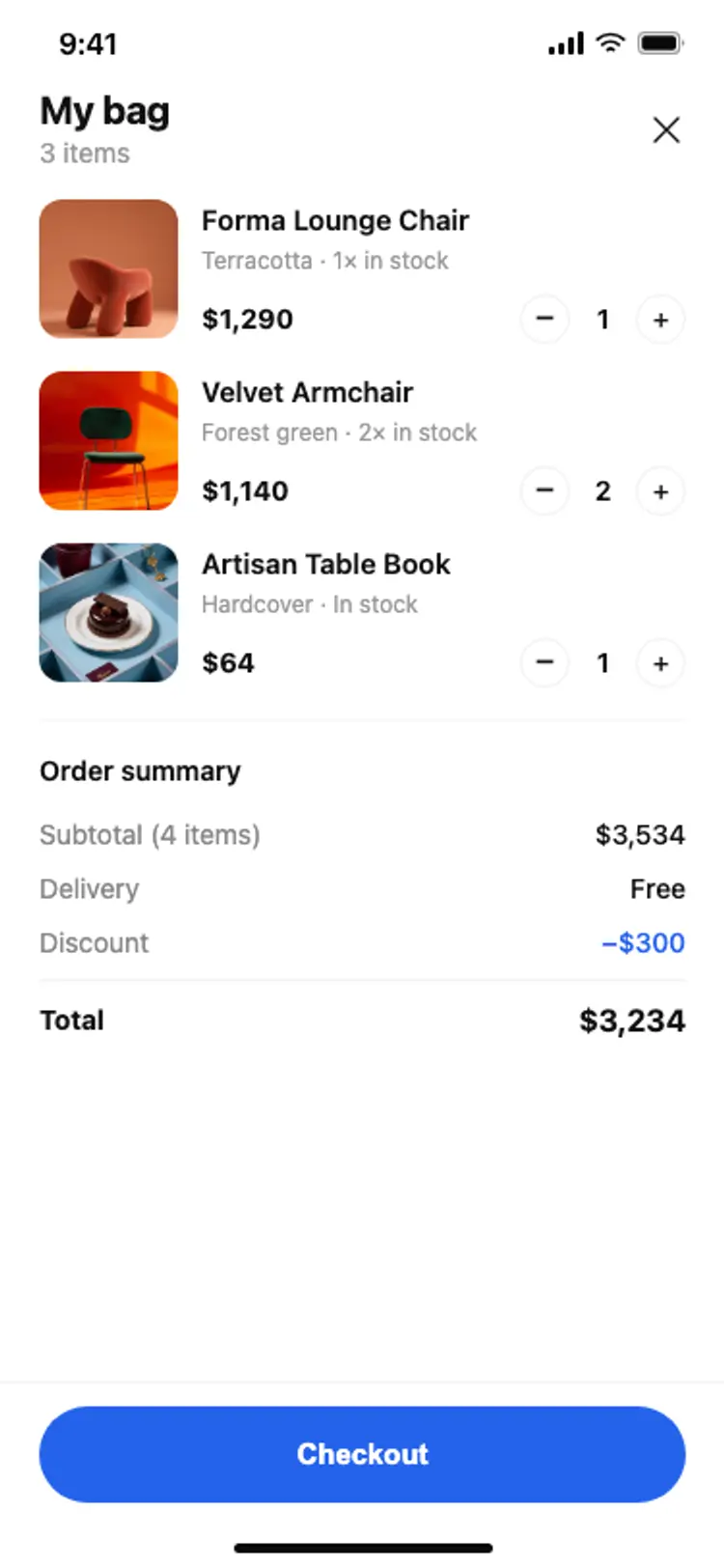
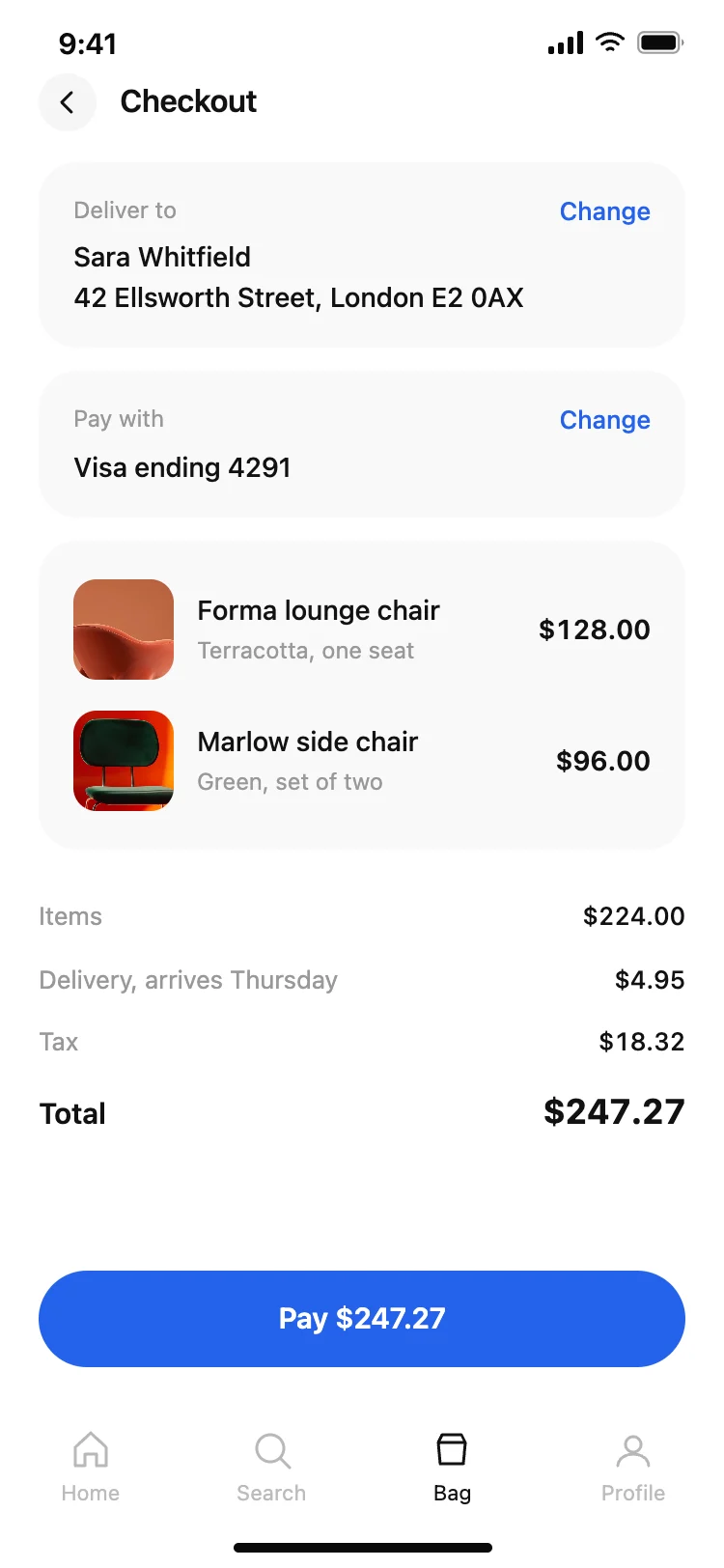
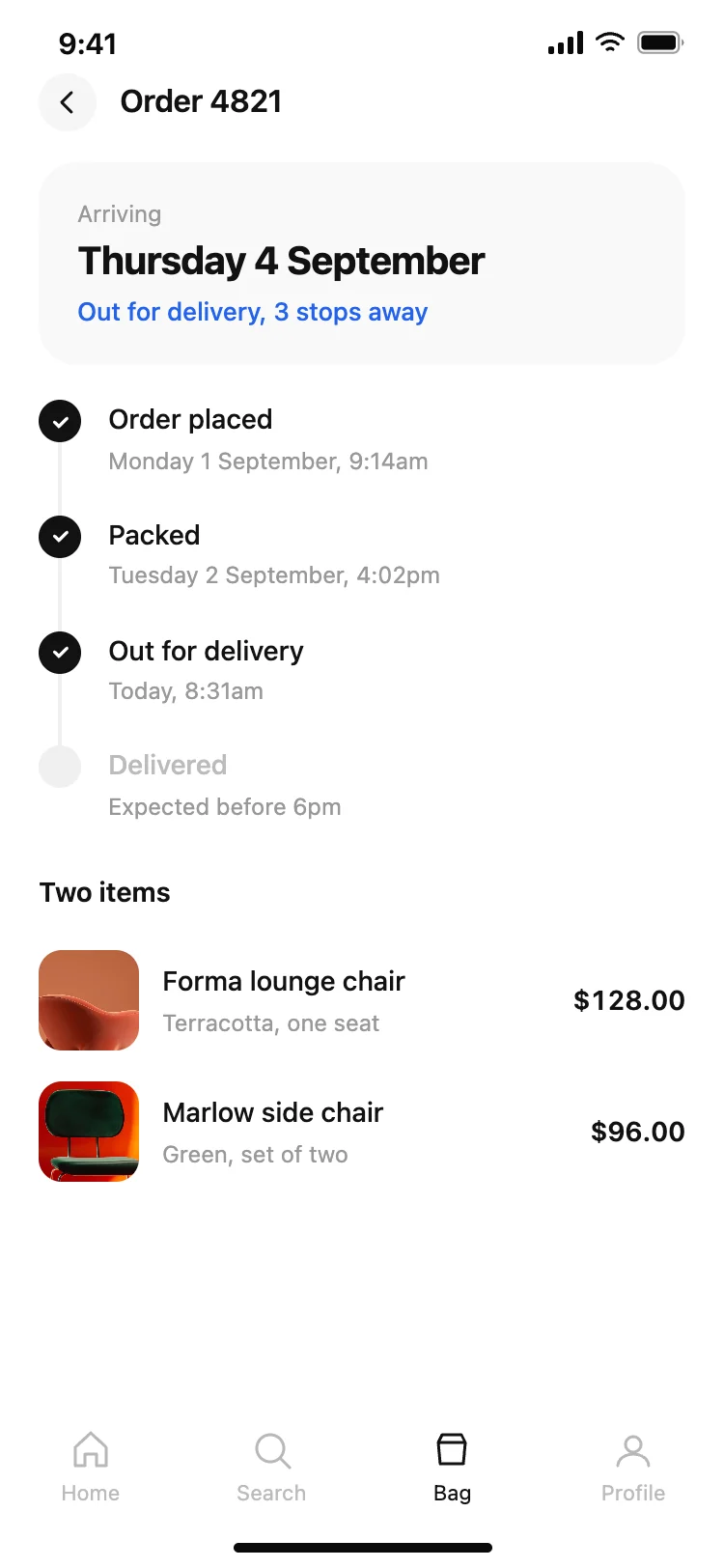
All 5 screens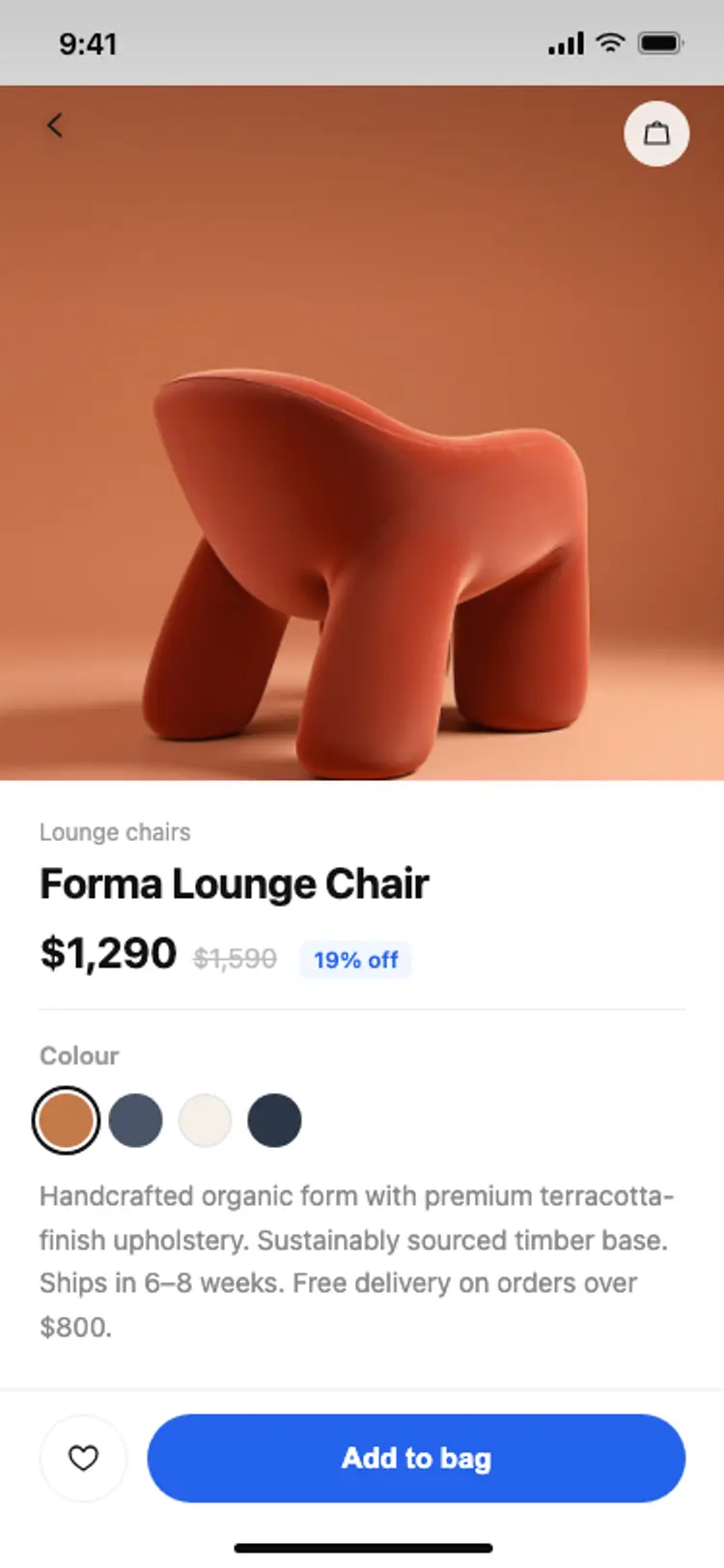
Other app templates you might like
See also
Browse app templates